How to Create the Most Effective Multi-Image Posts on Facebook and Twitter

Organic social media reach is on the decline.
To make matters worse, competition is only getting more fierce.
From Fortune 500 companies to small mom and pop shops, all types of businesses are getting in on the social media marketing game.
Plus, you're not just competing against other brands for attention. You're competing against updates from friends and family, funny animal GIFs, and everything else people might come across on social media.
Users feeds are so saturated, getting seen by your intended audience can be incredibly difficult. If you're going to succeed, you need to get creative.
One way to start experimenting is with multi-image social media posts. In fact, posts with multiple images have been shown to get more reach (and the data doesn't lie). More reach means more opportunities to connect with your audience (and turn them into leads and customers).
Intrigued? Read on to learn how to create effective multi-image posts and start pushing your reach in the right direction.
Level Up: Enroll In AMI's Social Media Strategy Certification Course
The world of social media is ever-changing. To help you create a social strategy focused on generating results, enroll in the Actionable Marketing Institute’s Social Media Strategy Certification course.
You’ll get training, step-by-step tutorials, videos, & premium resources that cover everything from setting goals, choosing the right social channels, creating engaging content, & measuring results.
More eyes = more leads = more sales!
Click To TweetReady to try it yourself? Create your free marketing calendar. Then, read this post to learn how to get the most of your new tool.
Recommended Reading: How to Convince Your Team to Use (And Love) CoSchedule
Create Multi-Image Posts With This Giant Social Media Image Bundle (Psst ... It's Free)
We're so excited about launching multi-image post support that we're giving away this enormous bundle of free stock photos! Download 'em all now and use them in your own marketing, totally free of charge.
How to Create the Most Effective Multi-Image Posts on Facebook and Twitter
Click To TweetWhat Are Multi-Image Social Media Posts?
It might seem like an obvious question, but first, let's explain what multi-image posts are (and are not).
Multi-Image posts are the same as your standard social media post. But, instead of one image, they include multiple images. Here's a great example from Ford Motor Company:
We should note this post will only cover organic multi-image posts on Facebook and Twitter. Facebook carousel posts are a little more complex (and worthy of a post unto themselves), so we won’t be discussing them here.
Recommended Reading: How to Make the Best Social Media Images the Easy Way
Why Should Marketers Create Multi-Image Posts?
You may have just read that and thought, “Yeah, but what's the real benefit to adding more images to my posts?”
There are three main benefits that can come from utilizing multi-image social media posts:
- Increased engagement. Multi-image posts add more visual appeal. That means your posts will have a better chance of standing out in a cluttered newsfeed. Thus, they create more opportunities to drive engagement.
- Tell more complete visual stories. If a picture is worth a thousand words, then what's the value of adding even more pictures? By including several related photos (or even sequential images showing steps in a process), you can add more context to your content.
- Showcase more details about your products. Now you can show off multiple angles, features, and more in greater detail, enticing your customers to buy (or at least start doing more research).
Organic reach declining? Try using multi-image posts to pick it up back up.
Click To TweetHow Do I Create Multi-Image Posts On Facebook?
Now comes the fun part, creating your multi-image posts on Facebook. We’ll break this down and show you how to create them in CoSchedule and on the network.
How To Create Multi-Image Posts On Facebook Via Desktop
To create multi-image posts on your desktop, first open your company Facebook page:
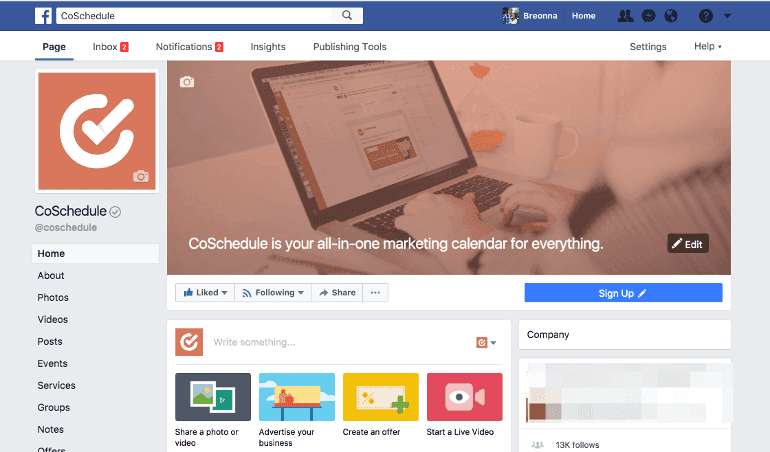
Click on Share a photo or video:
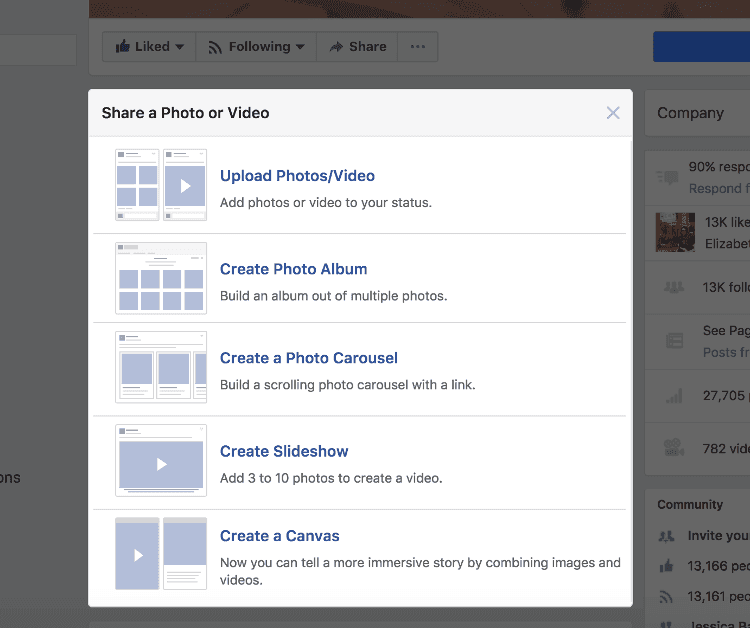
Click on Upload photos/videos a pop up window will appear that will let you select the photos that you want to upload to your status:
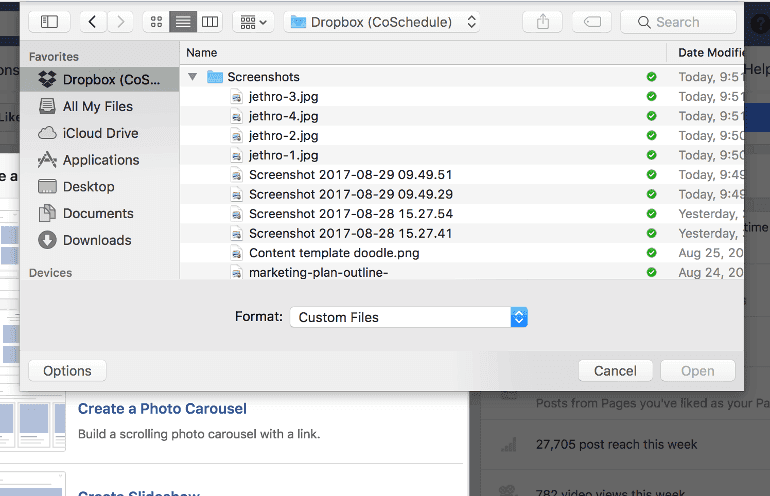
Select your photos:
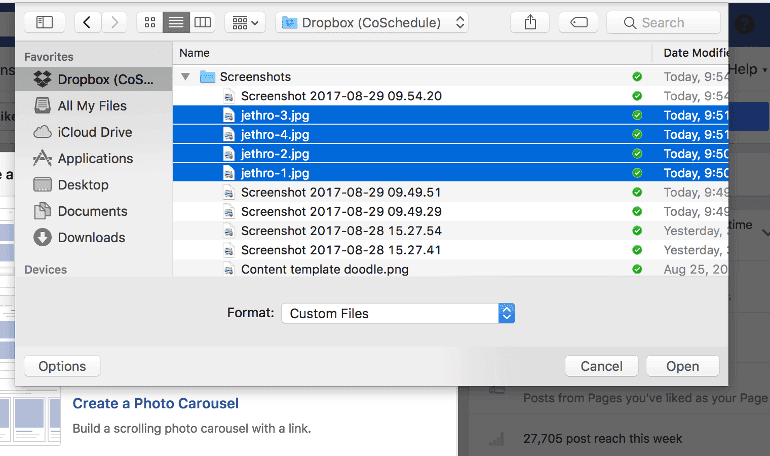
Your photos will appear in preview and you can drag and drop them in the order you want them to appear in your post:
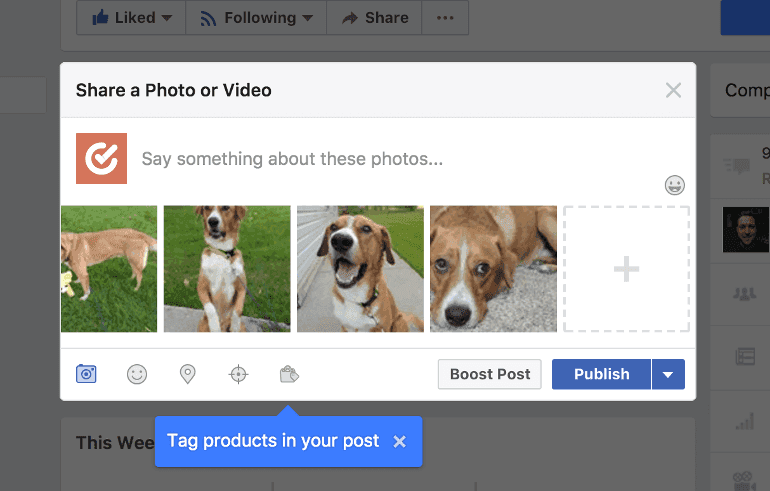
You can then either publish or schedule your post.
How To Create Multi-Image Posts On Facebook Via Mobile
To schedule your multi-image posts on mobile, open your Facebook app and go to your company page:
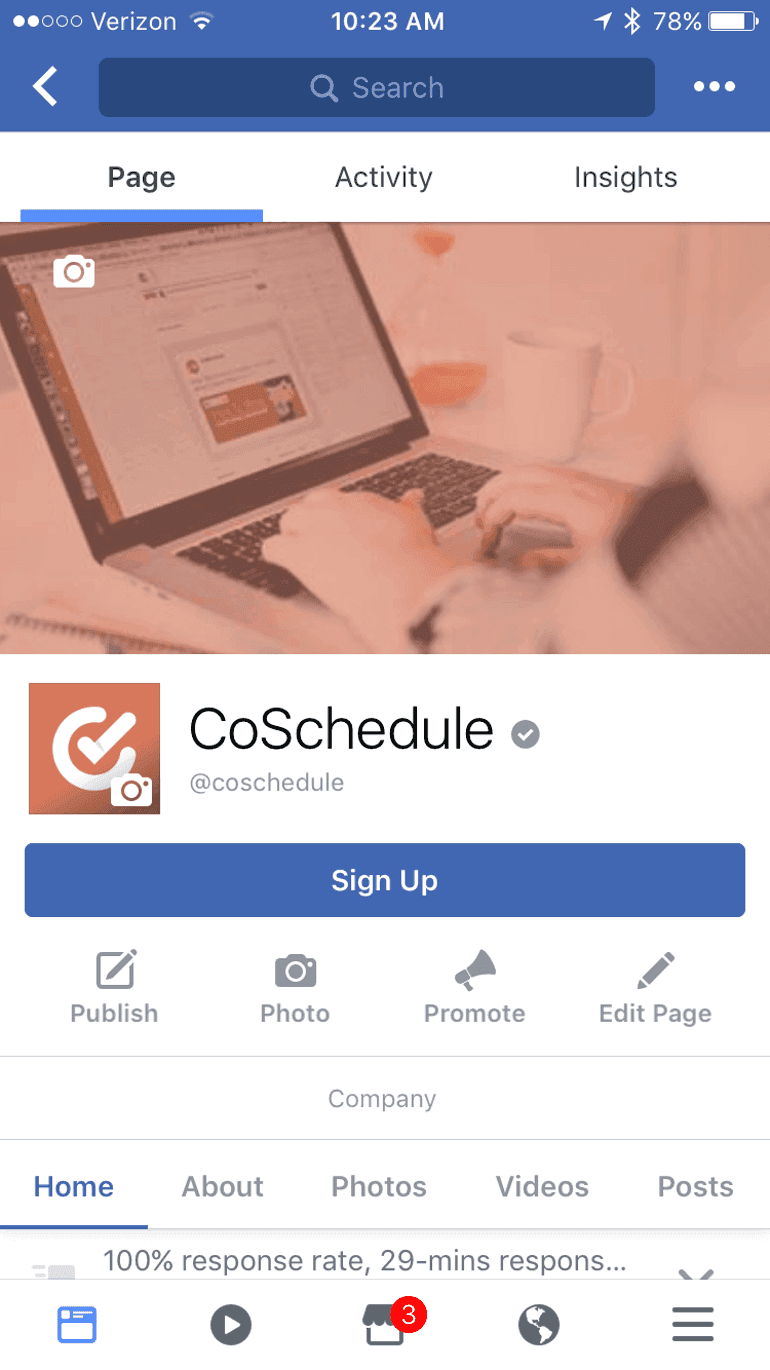
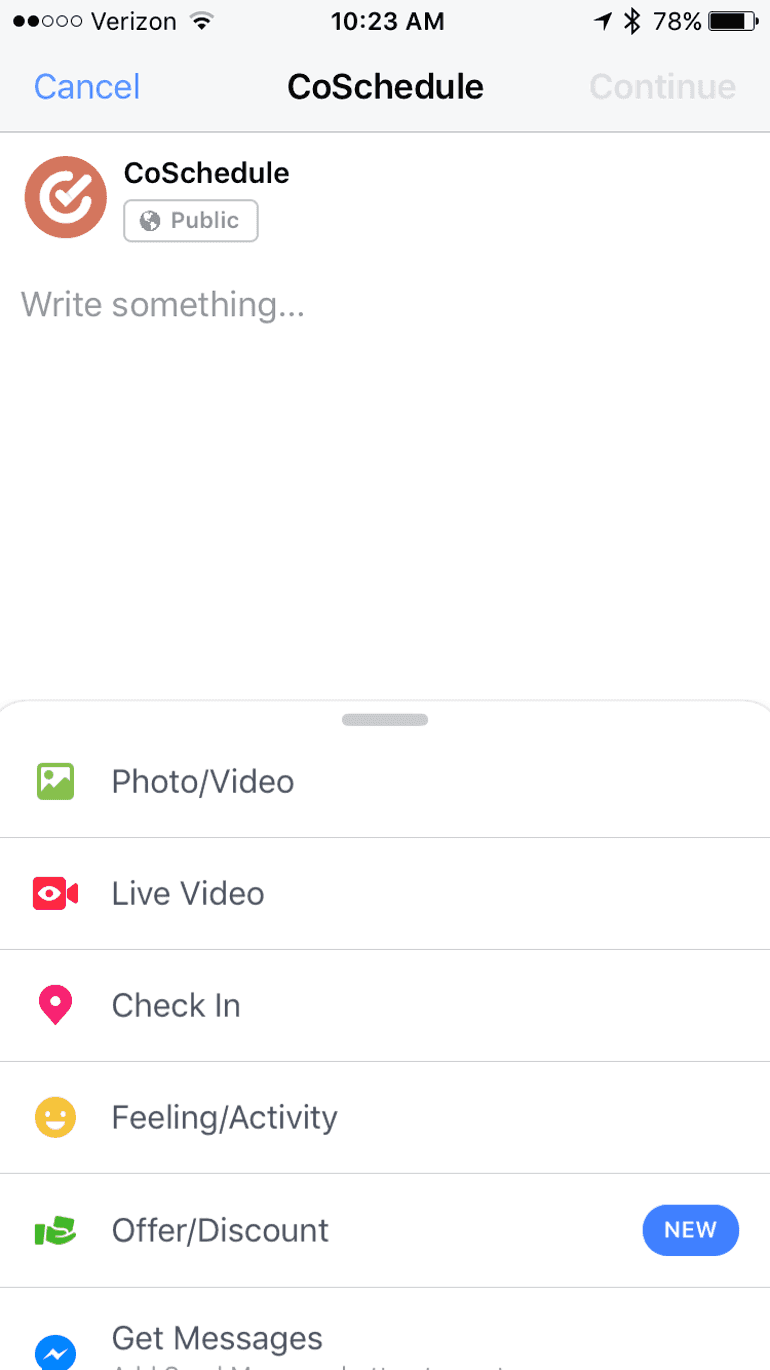
Click on Publish and then Photo/Video:
Select your photos. The order that you select your photos in is the order that they will appear in your post:
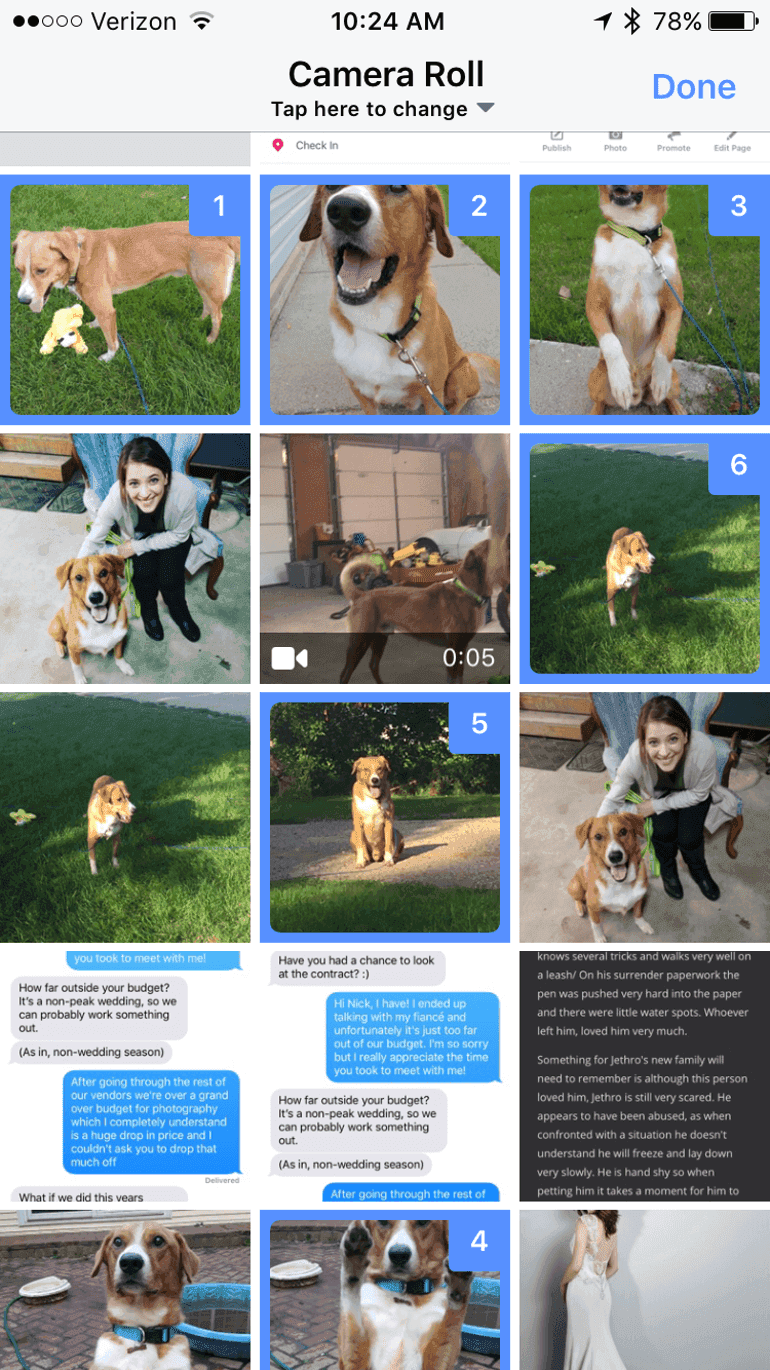
Unlike the desktop version, you cannot drag and rearrange your photos once they are in place. So, be conscious of the order you select them in.
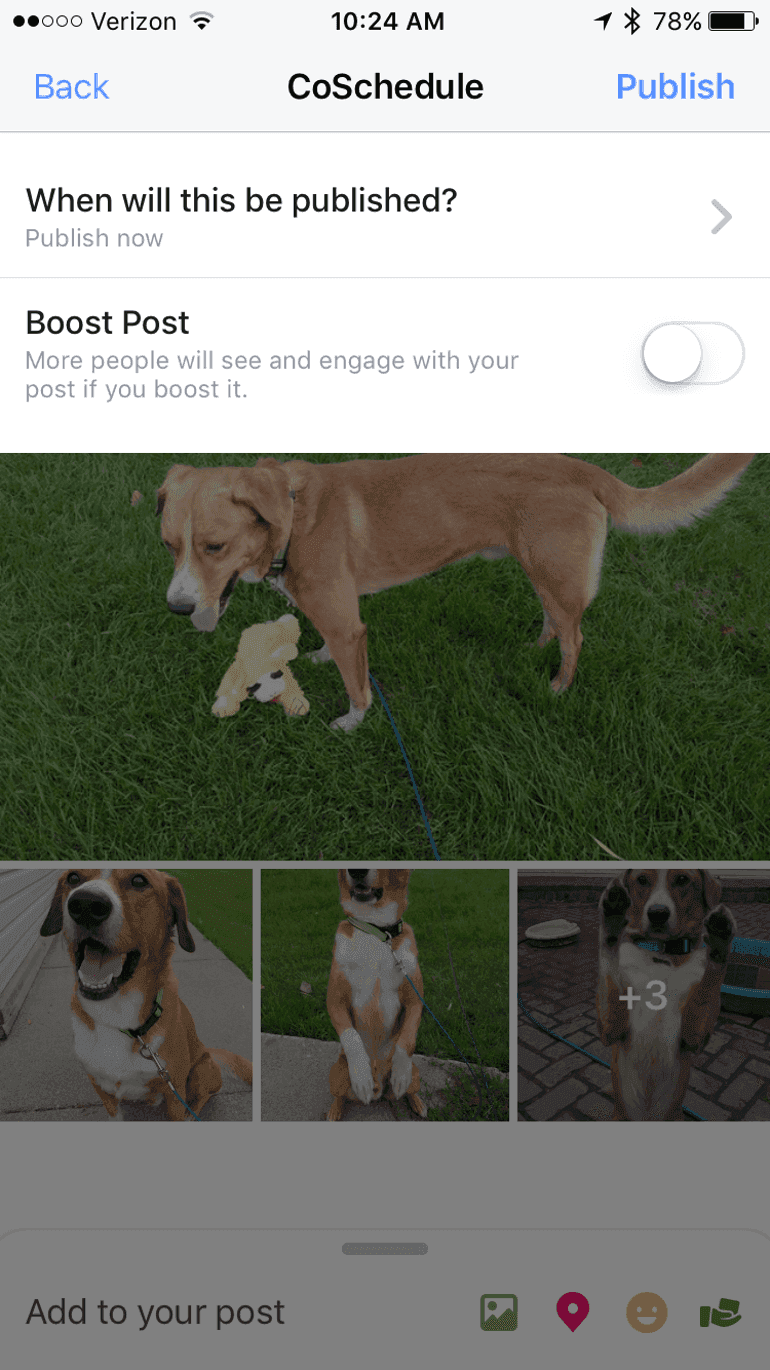
Once you have the right order, you can publish or schedule the post right from the app:
How To Schedule Multi-Image Facebook Posts Via Desktop With CoSchedule
Now let’s say that your team decides to use CoSchedule to create and send your multi-image Facebook messages. To set up those messages on your desktop, go to your CoSchedule calendar:
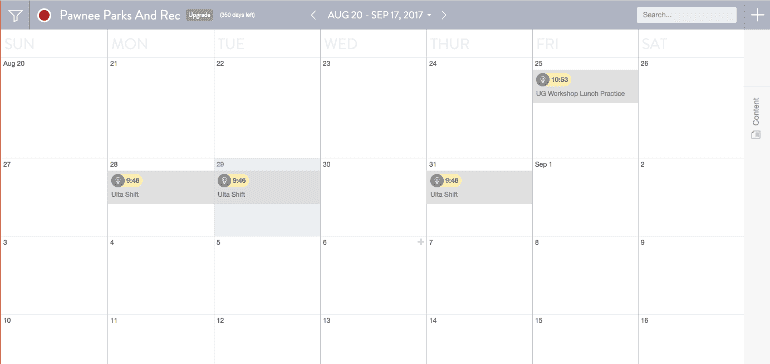
Click the + button in the upper right-hand corner and select Social Media Message:
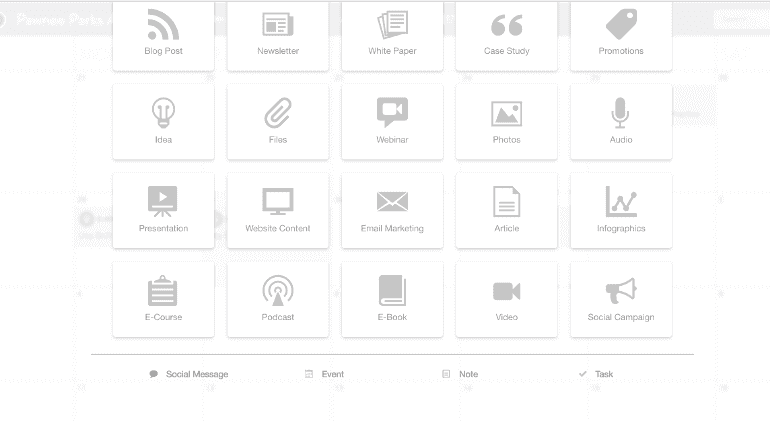
Select your Facebook profile:
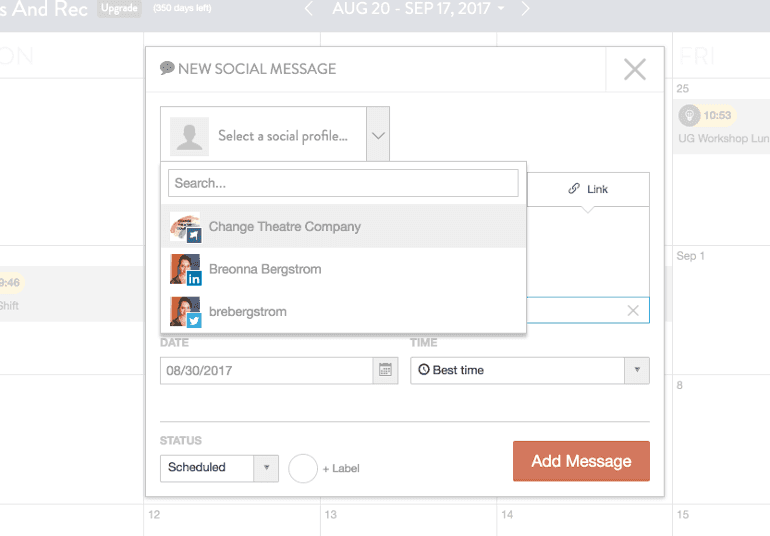
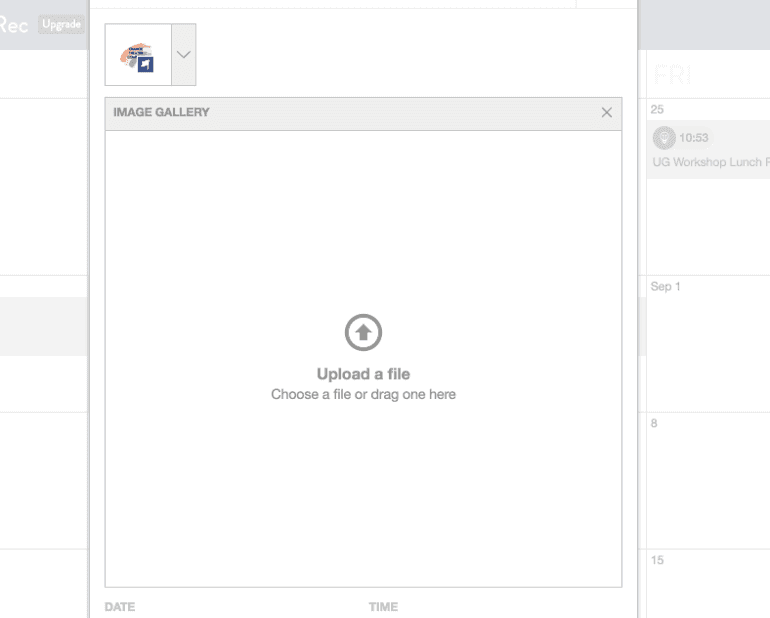
Once your profile is selected, you can upload photos for the post:
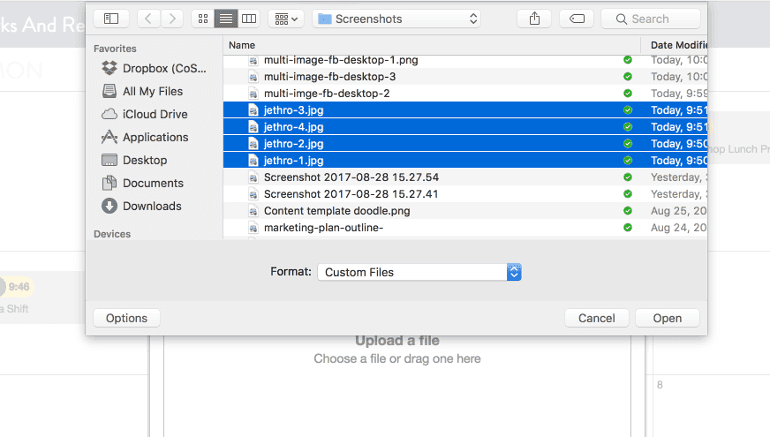
A pop up window will appear allowing you to choose your photos:
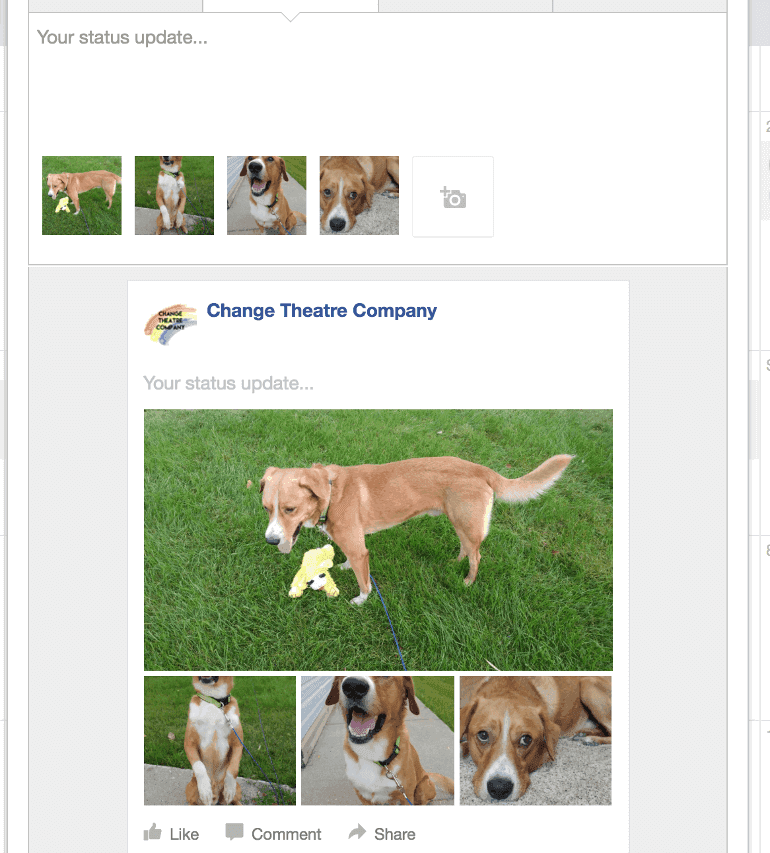
Once your photos are uploaded you can rearrange the photos in the order that you want them to appear. CoSchedule will preview the post before it’s published:
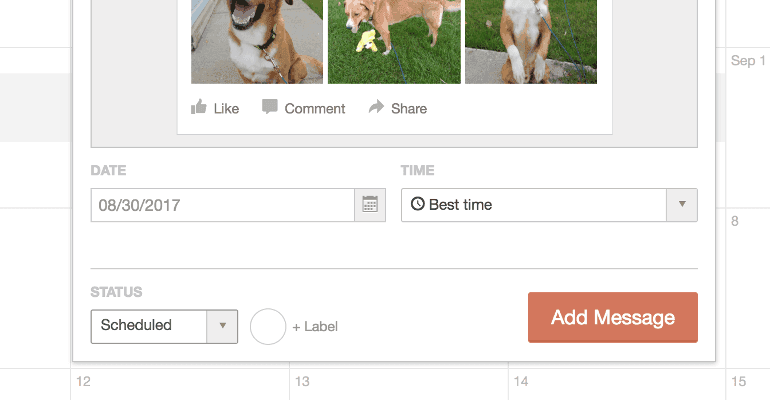
Once you fill in the text on your post, you can scroll down and schedule your post:
How To Schedule Multi-Image Facebook Posts Via The CoSchedule Mobile App
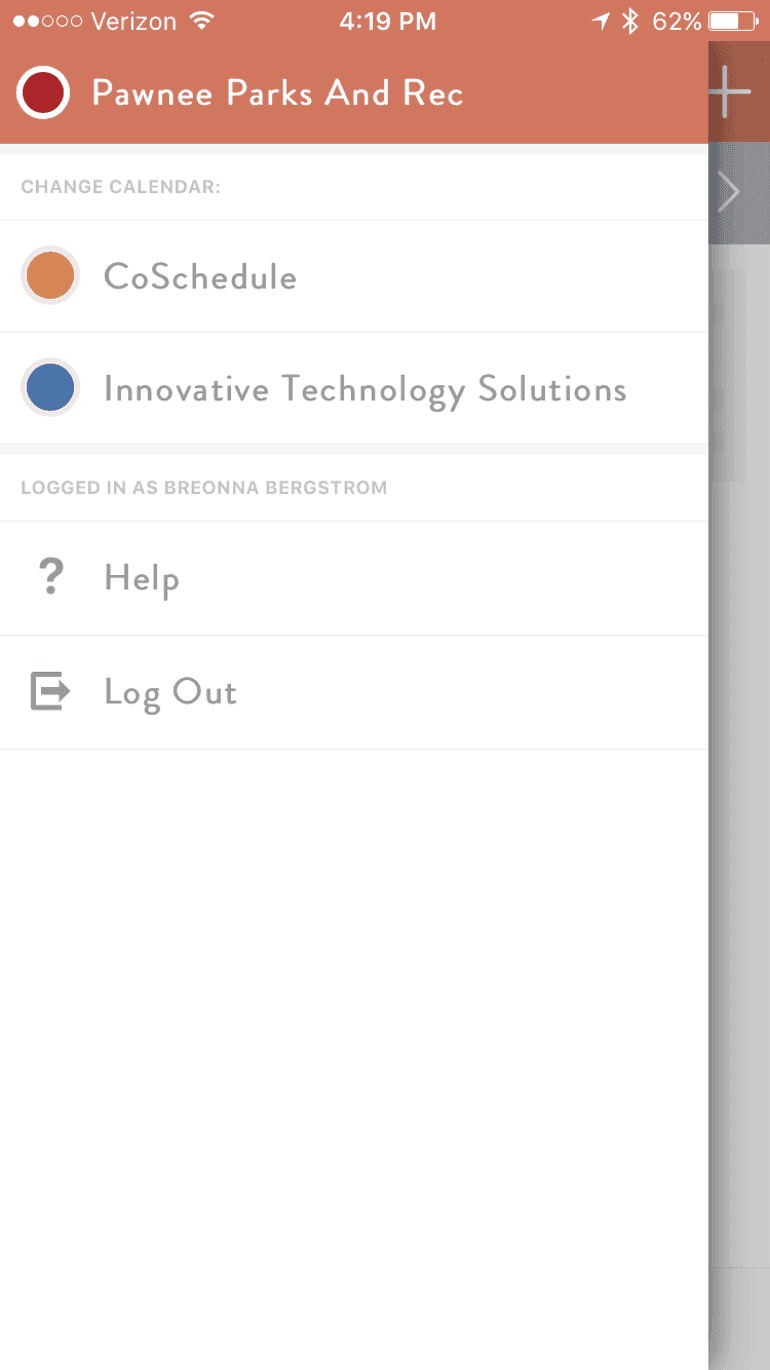
Download the CoSchedule app via the App Store (iOS) or Play Store (Android) and log into your calendar:
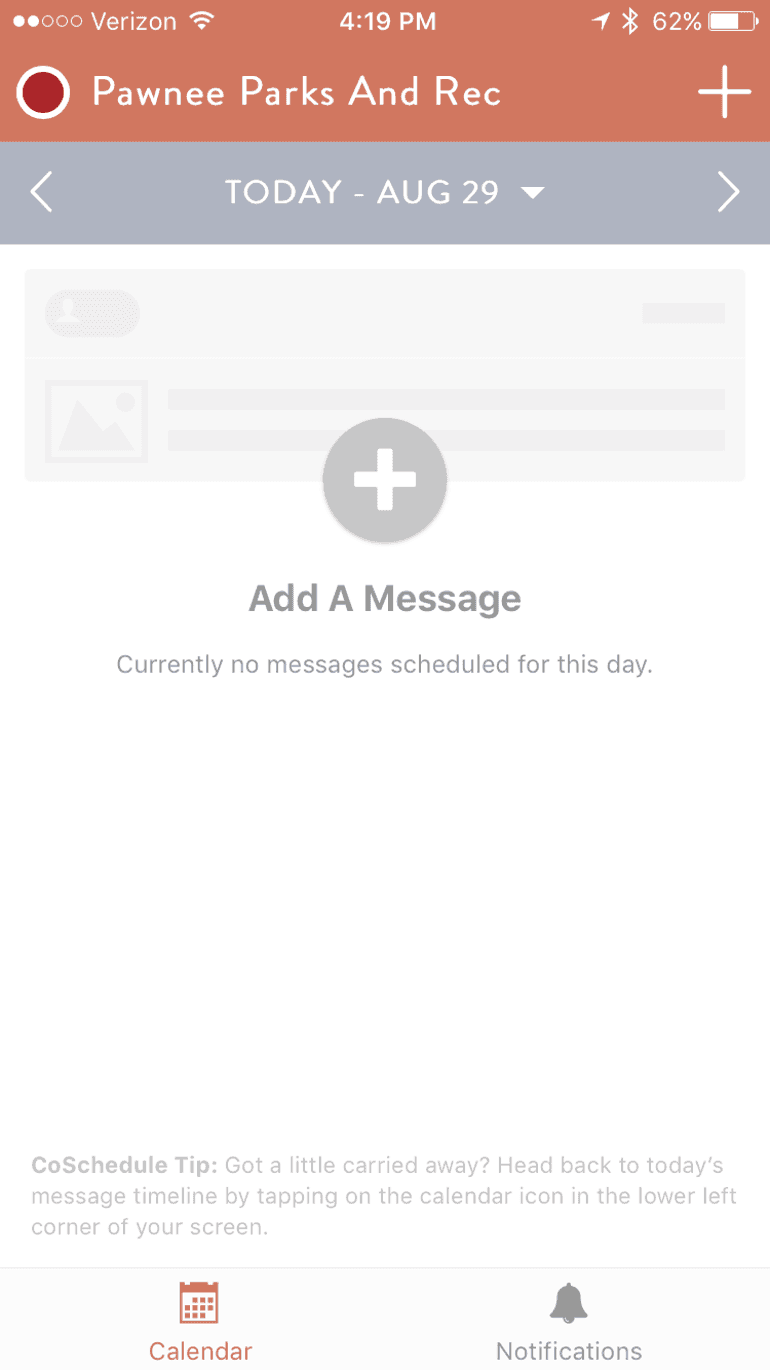
Tap the content tab and create a post for your Facebook profile:
Select your profile:
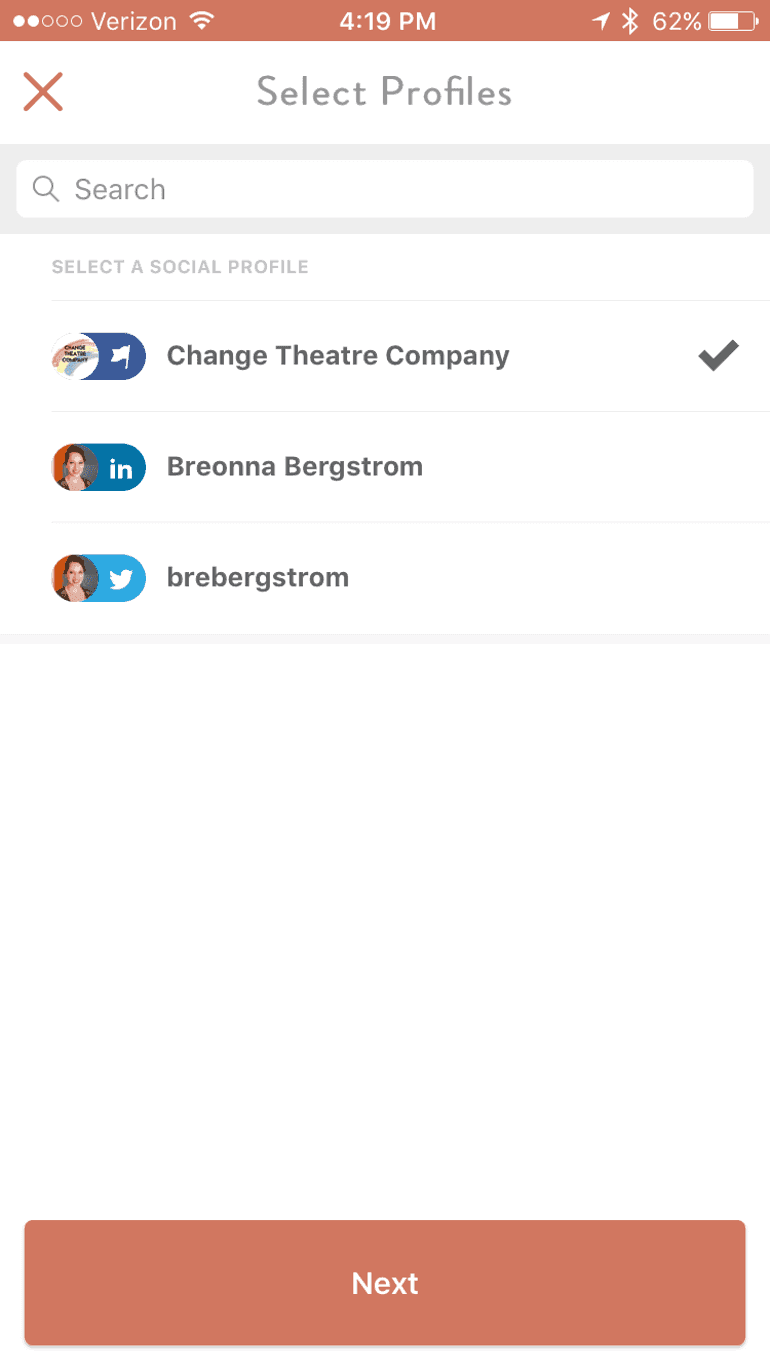
Click Add Images:
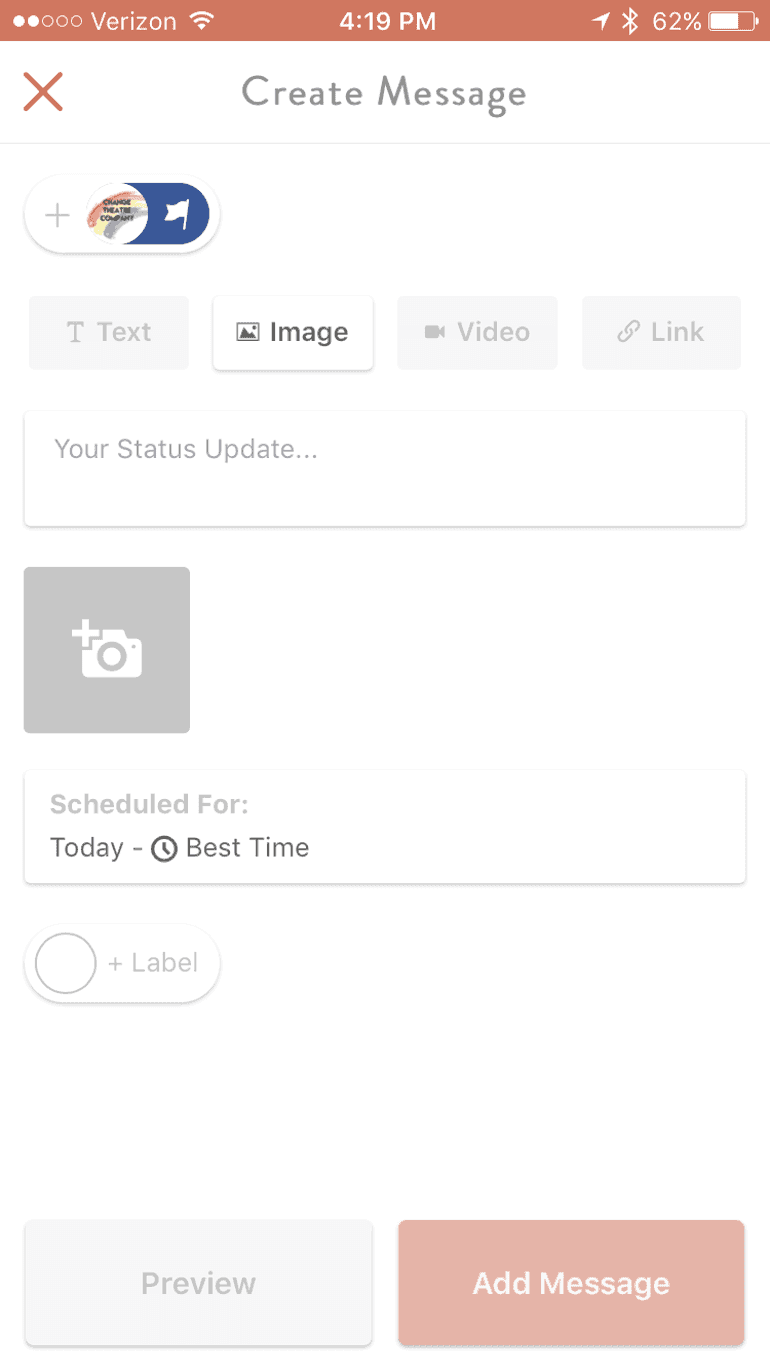
You can also pre-schedule your posting time at this point as well:
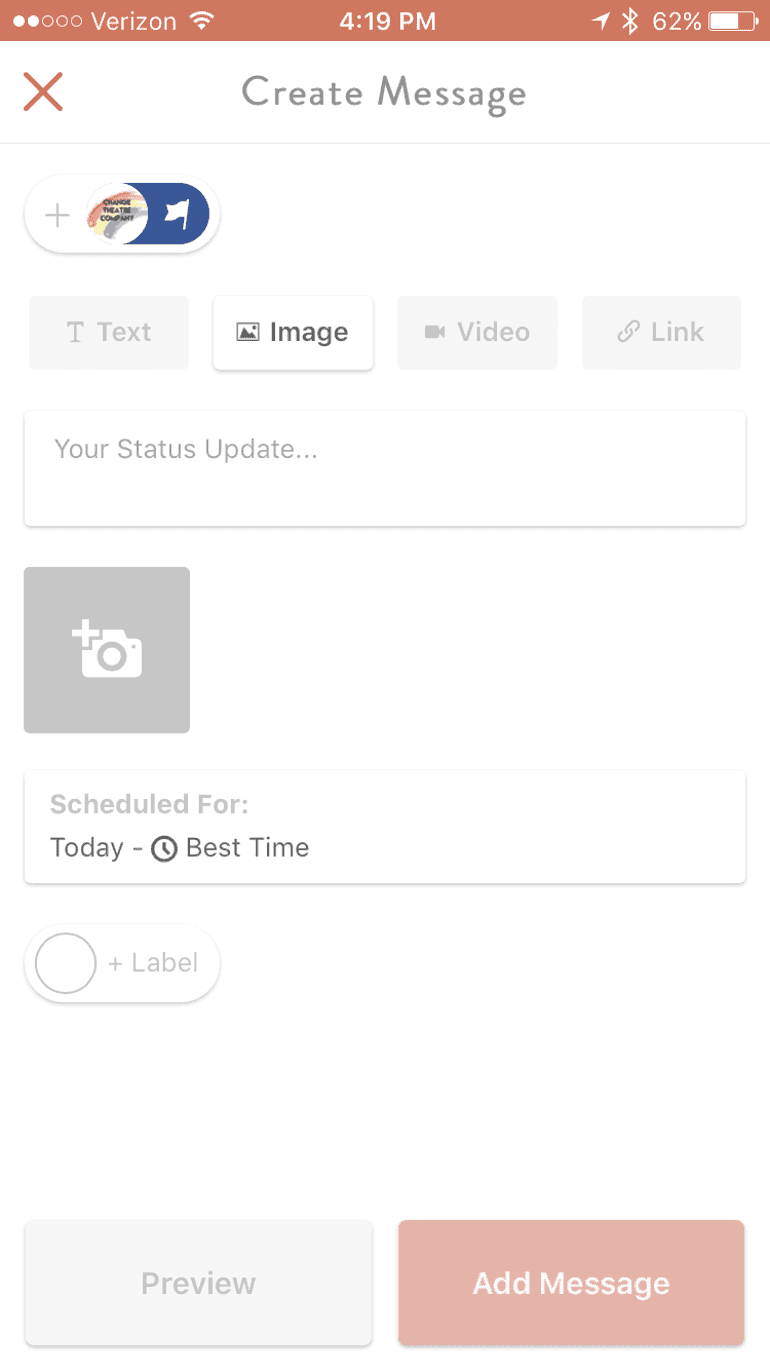
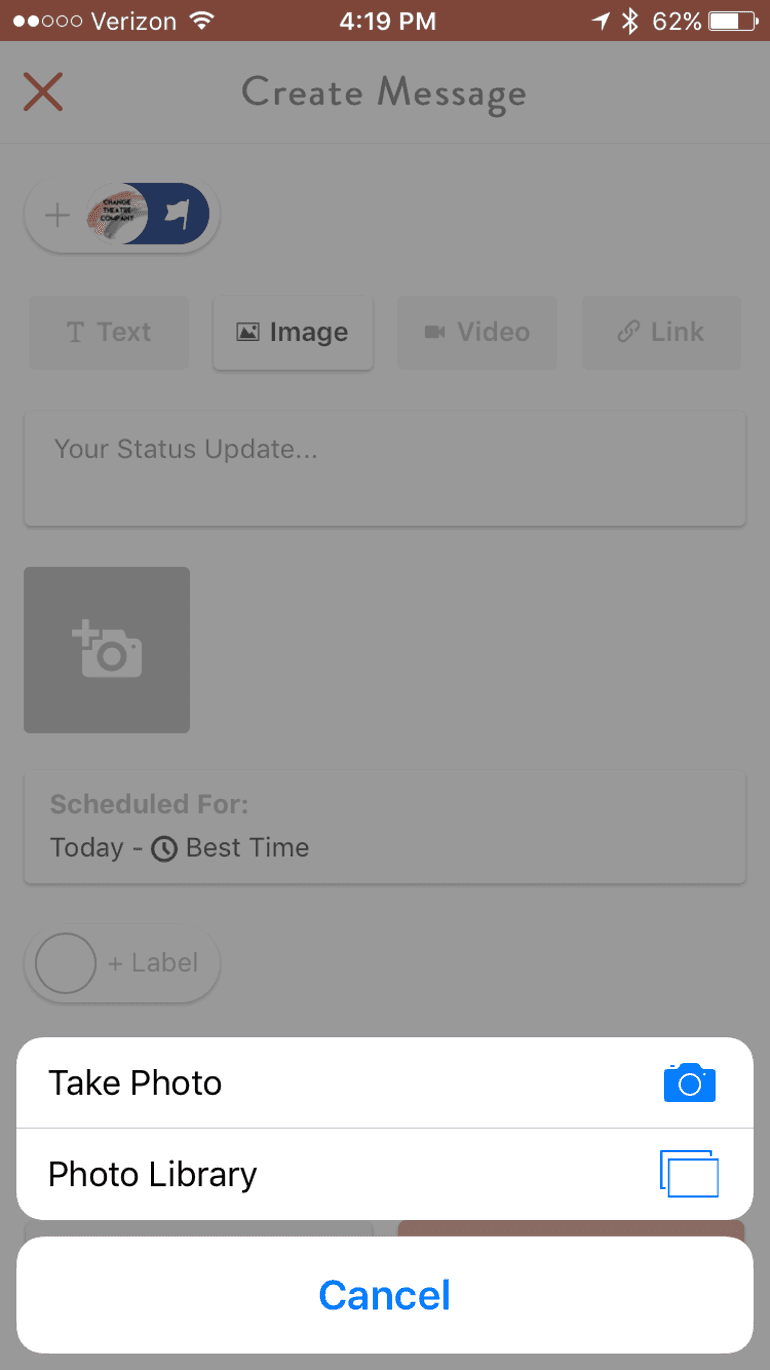
Choose where you want to upload your photos from (you can either take a photo, or select images from your photo library):
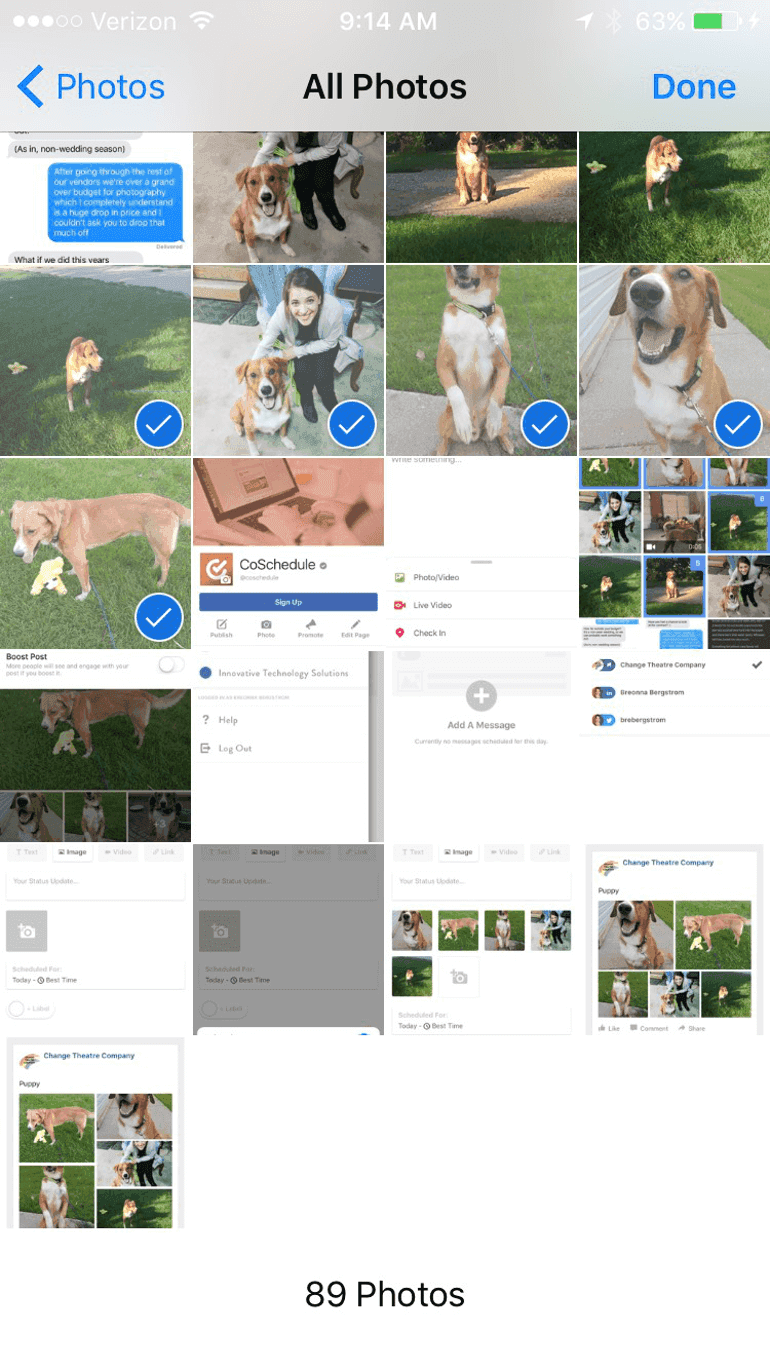
Choose which photos from your camera roll are going to be in your post:
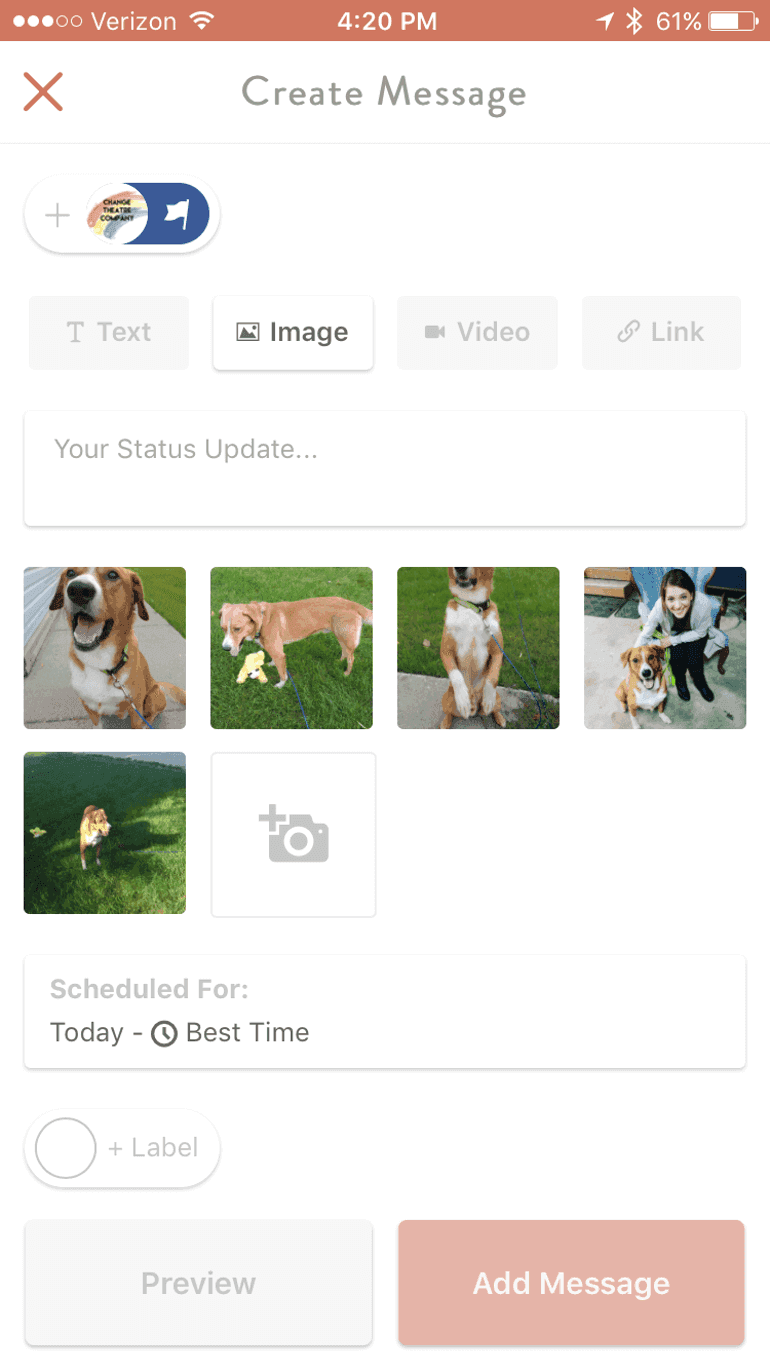
Rearrange your photos and check the post preview to make sure they are displaying correctly:
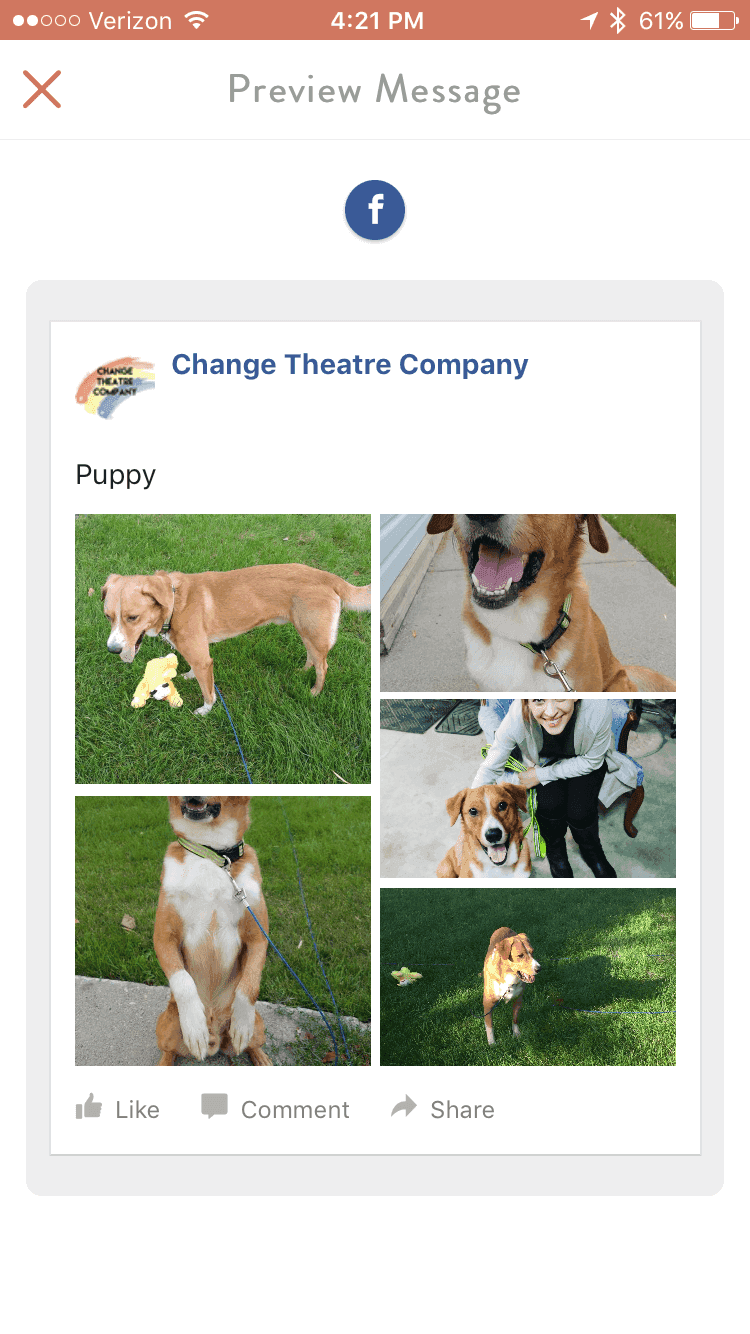
Preview your post:
Schedule your post:
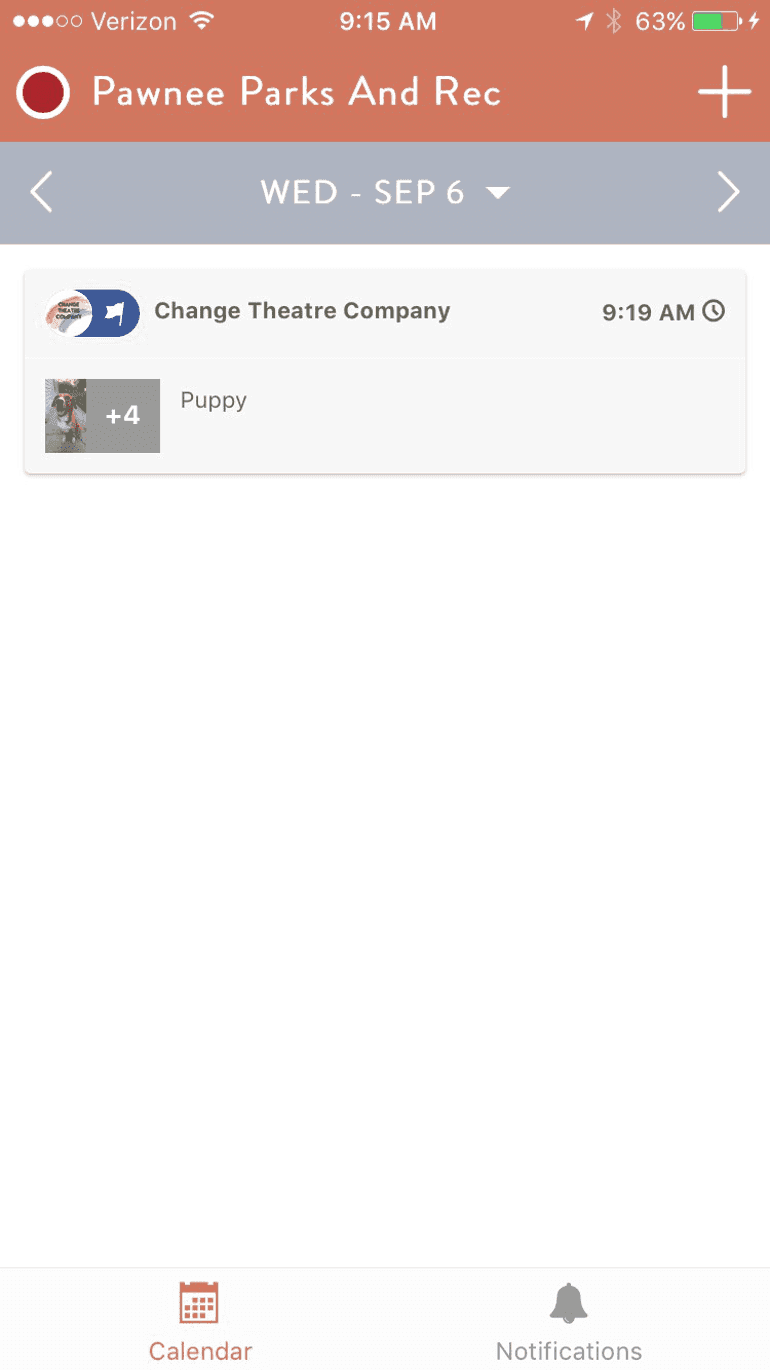
That's it!
Facebook Multi-Image Best Practices
When creating multi-image posts on Facebook, consider image size and consistency.
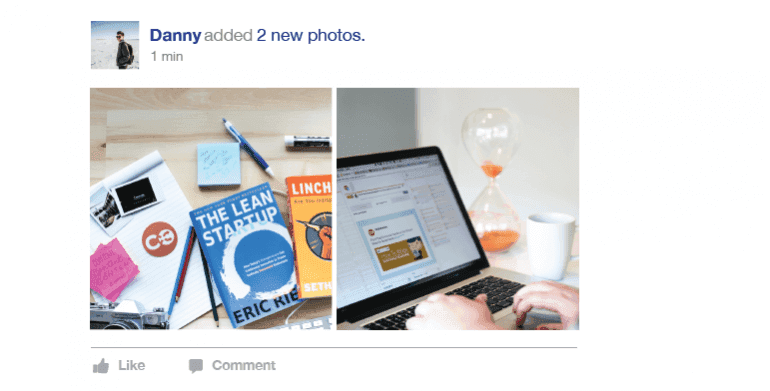
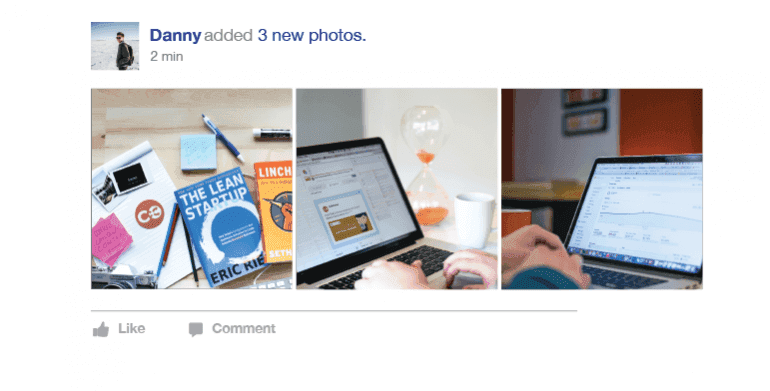
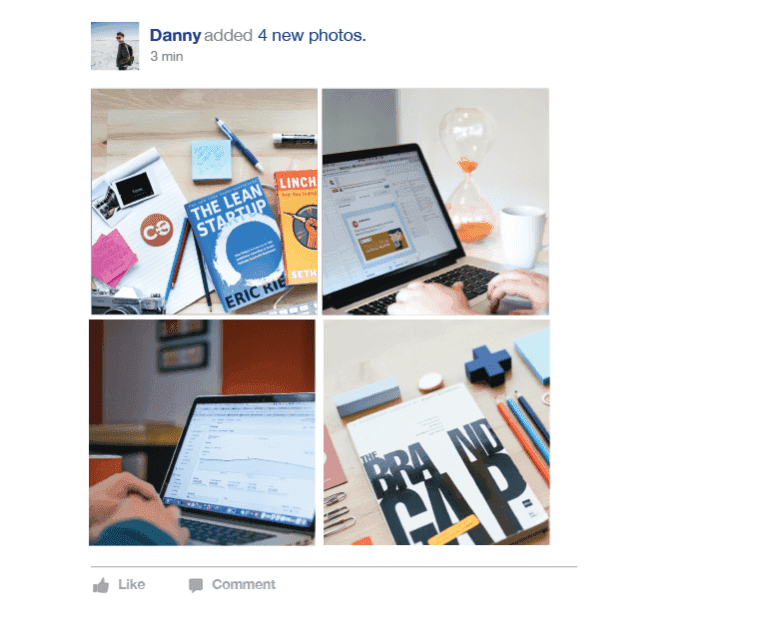
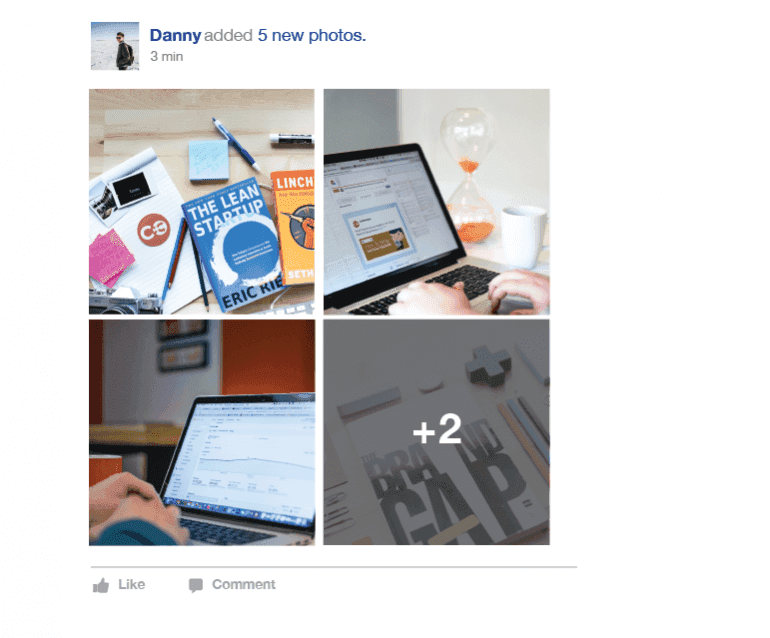
Different size images create different effects for your post. Similar-sized images will create more of a square image gallery.
Here is what different combinations of image sizes look like.
Two photos:
Three photos:
Four photos:
Five photos (notice this creates a +2 square):
Three photos (with one image of unequal size to the other two):
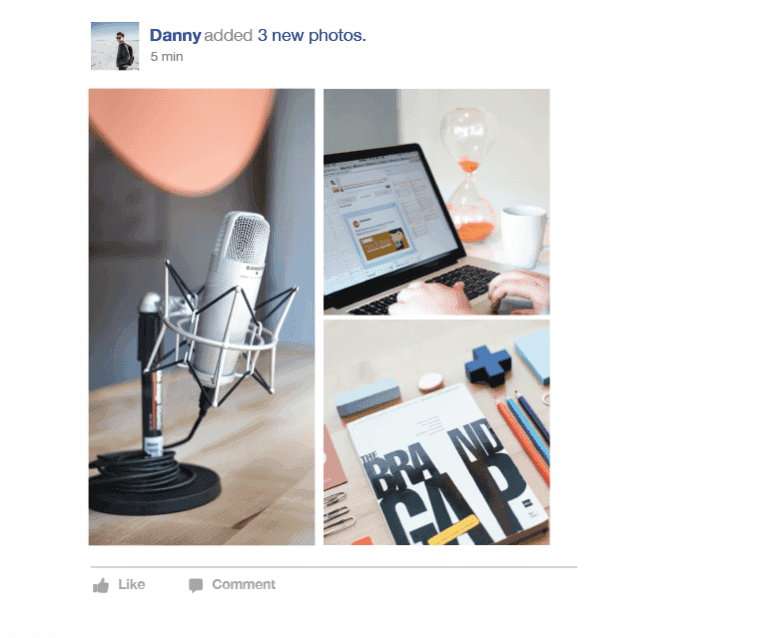
Four photos (with one of unequal size)

Overall, ensure that your images are related and be mindful of how they'll look once published.
How Do I Create Multi-Image Posts On Twitter?
The other network we'll be discussing is Twitter. It's a little more limited than Facebook in terms of handling multiple images, but it's still pretty easy to get them published.
How To Schedule Multi-Image Posts On Twitter Via Desktop
First, head to your Twitter page and click tweet in the upper right-hand corner like you usually do:
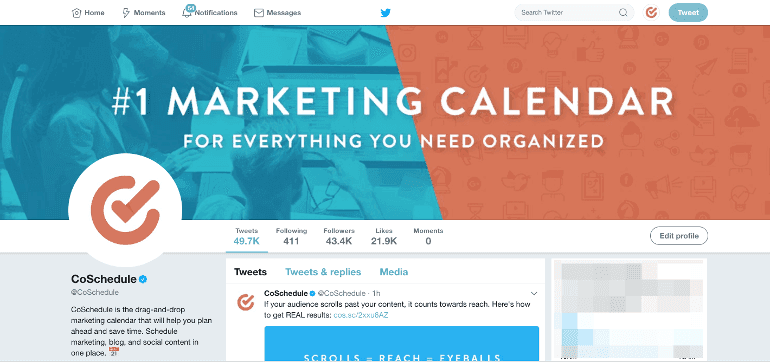
Click the image button:
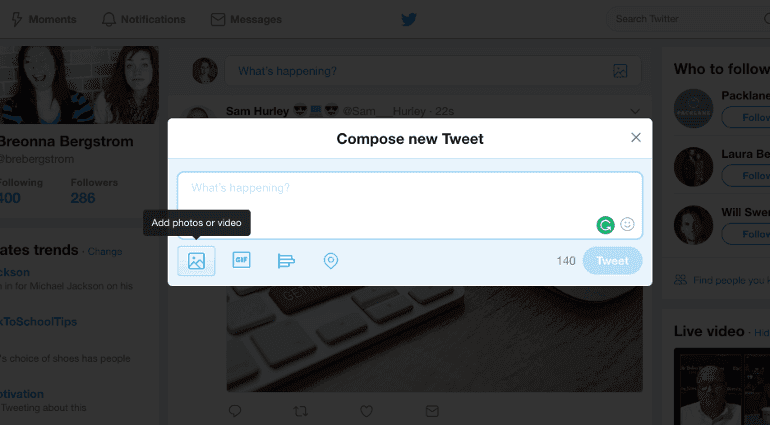
Once you select Add photos or video a second screen will appear allowing you to select your photos:
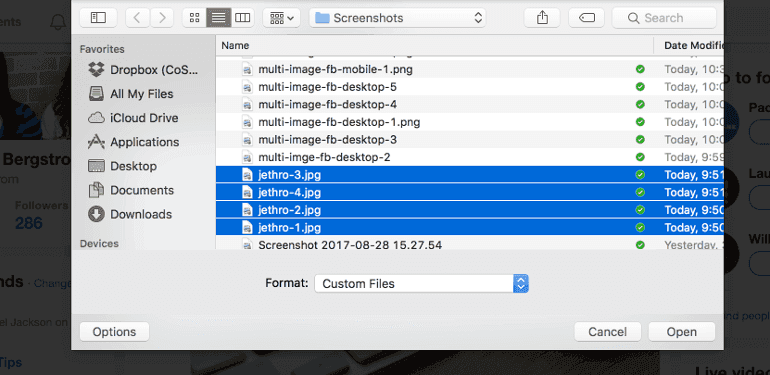
Unlike Facebook, Twitter only allows you to upload four pictures at a time. Photos can’t be dragged and dropped around like Facebook either, so they’ll need to be upload in the order you want them to appear in your post:
https://twitter.com/brebergstrom/status/902617365275389952
How To Schedule Multi-Image Twitter Posts Via Mobile
Open your Twitter app and select the profile you want to tweet from:
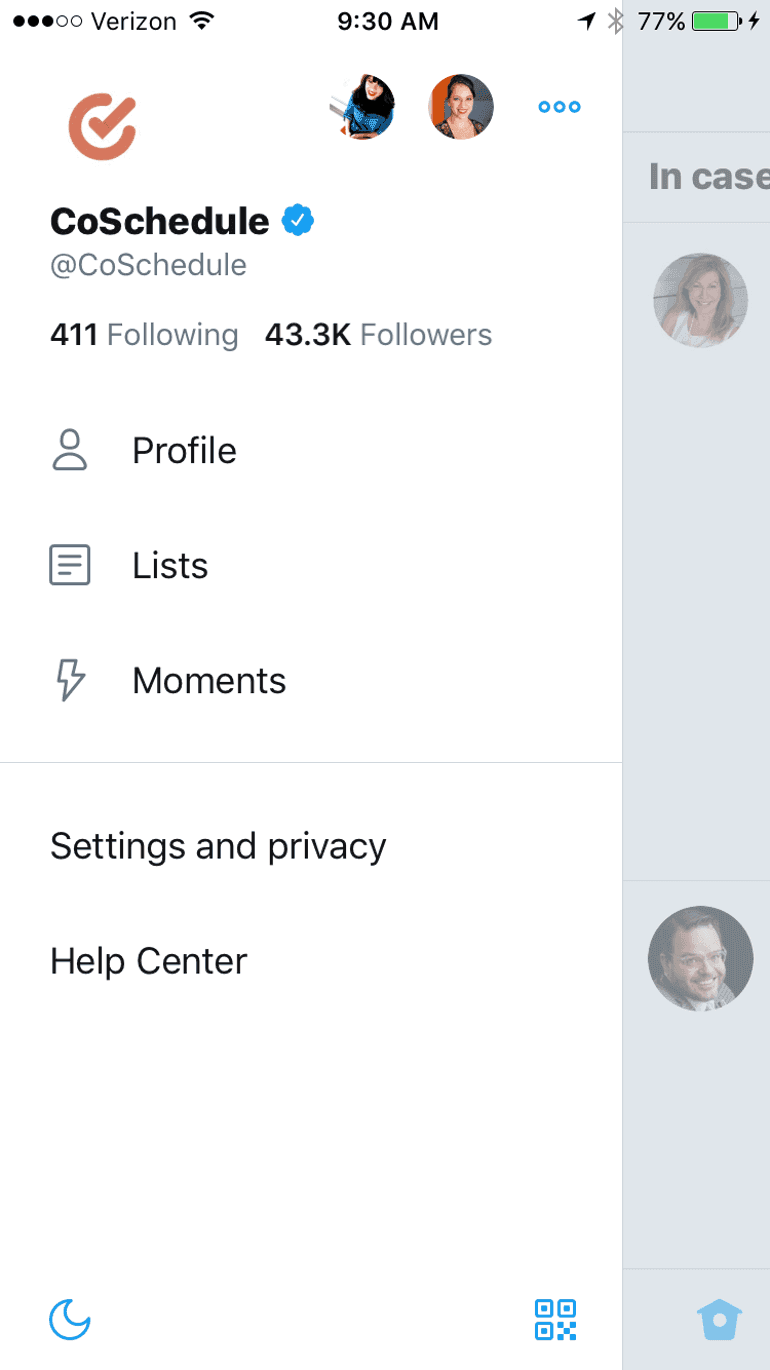
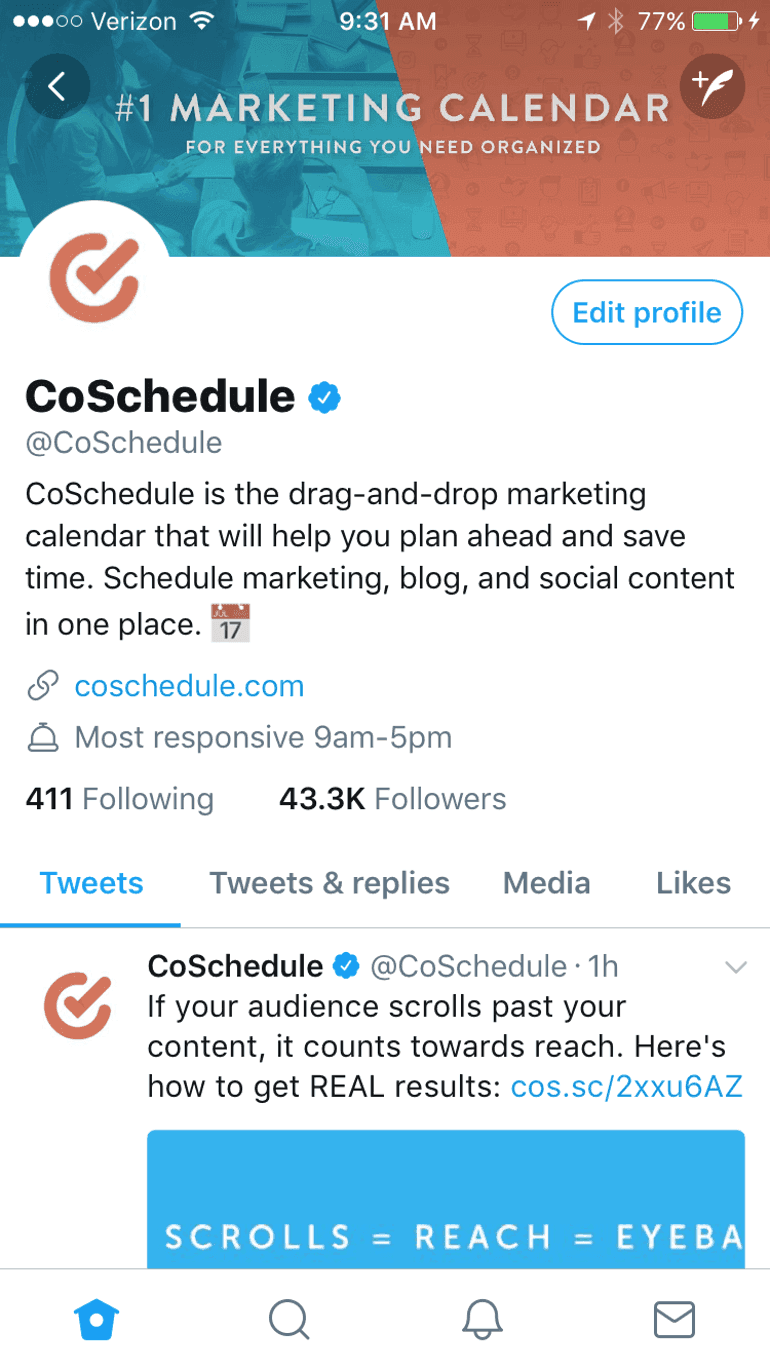
Click the create new Tweet icon:
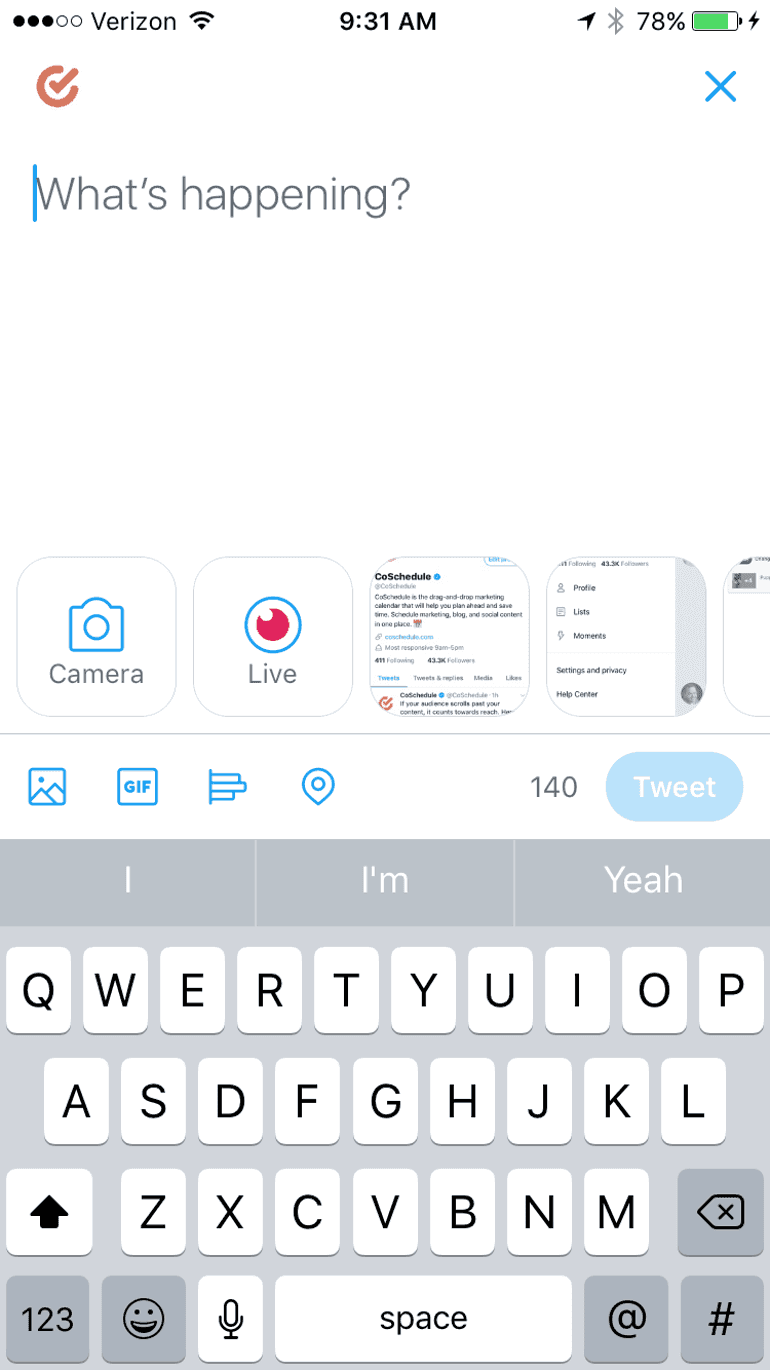
Then add in up to four photos from your phone:
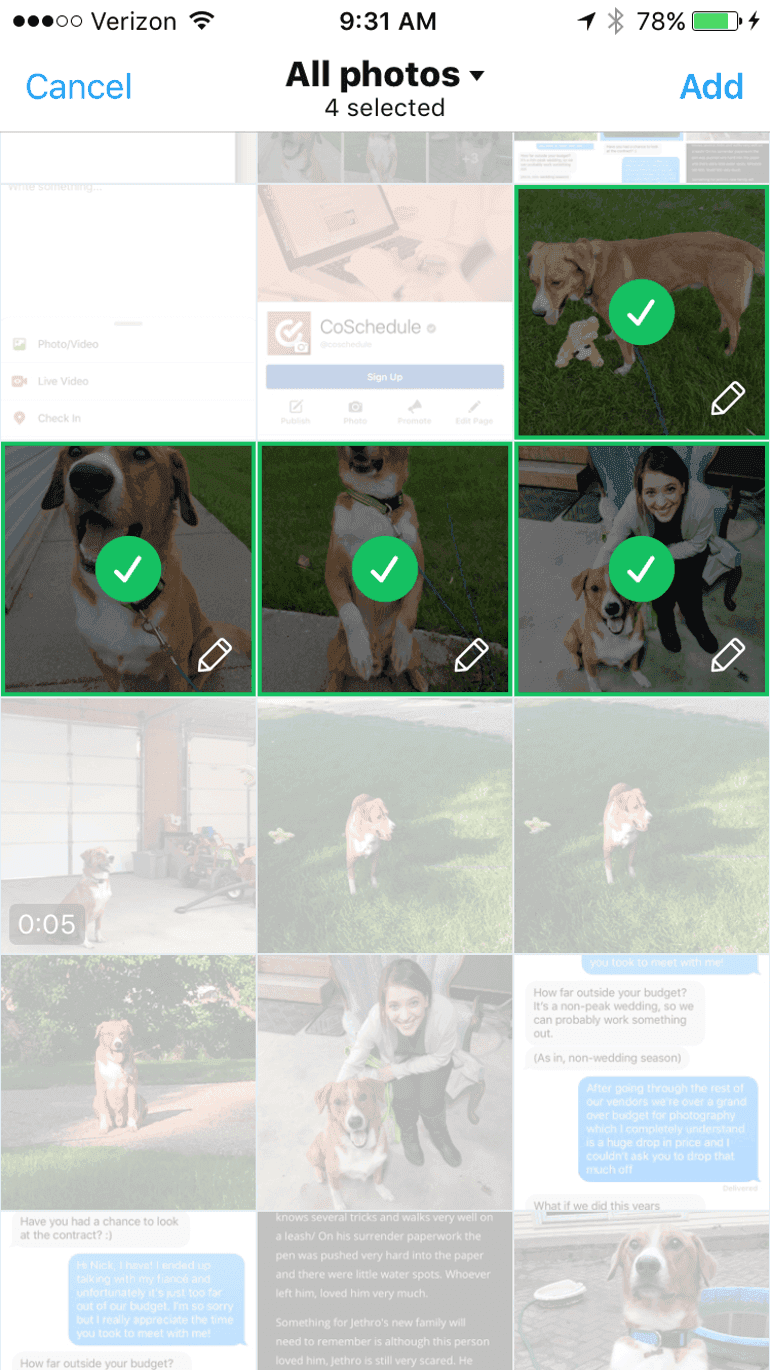
And then select from your available images:
Next, include your post text:
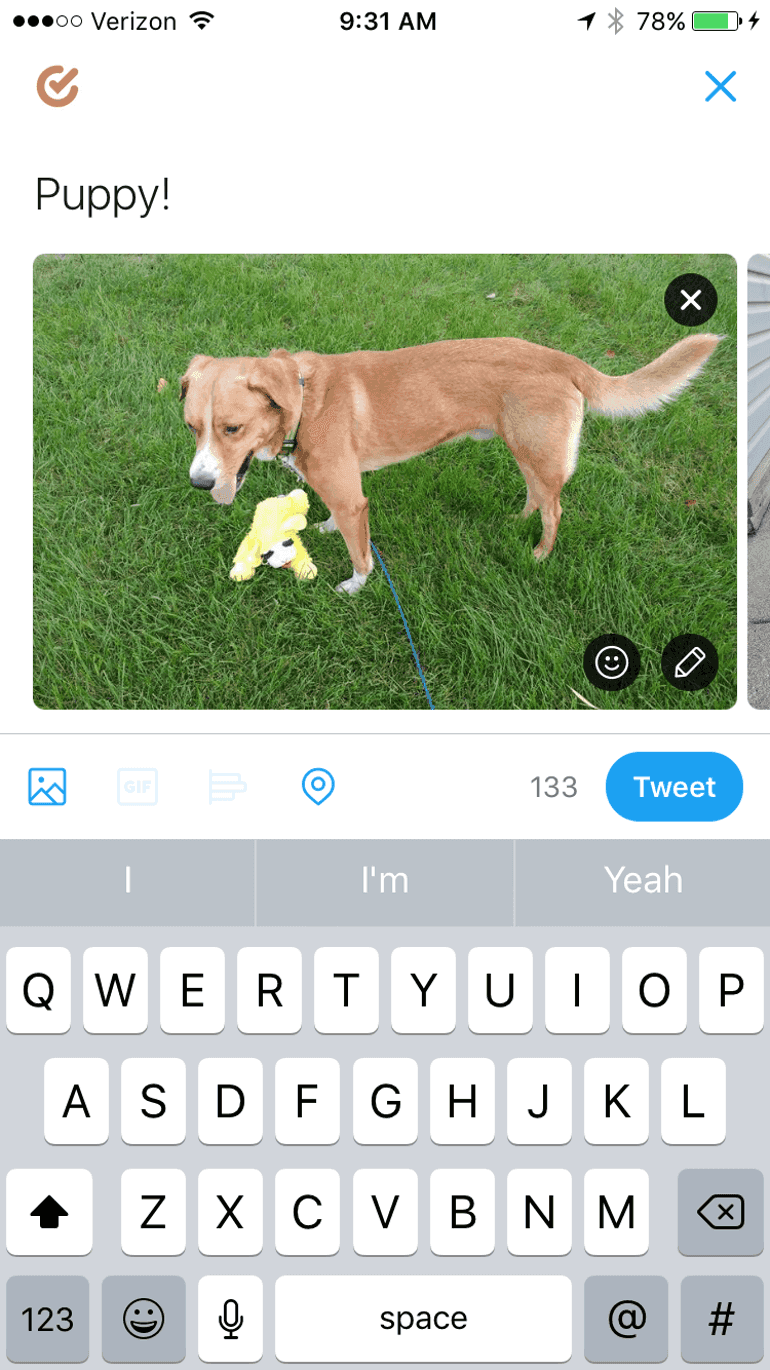
How To Schedule Multi-Image Twitter Posts On Your Desktop Via CoSchedule
Open your CoSchedule calendar:
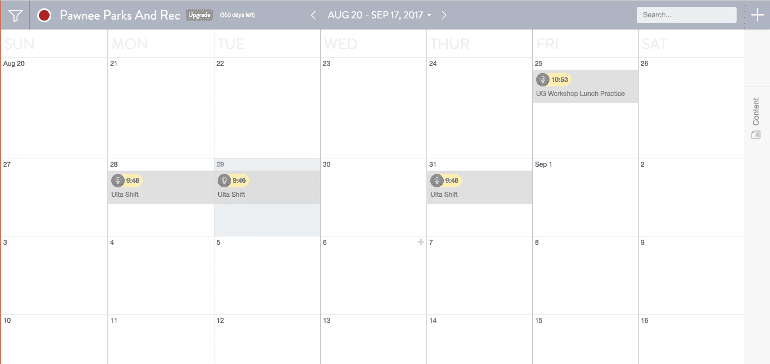
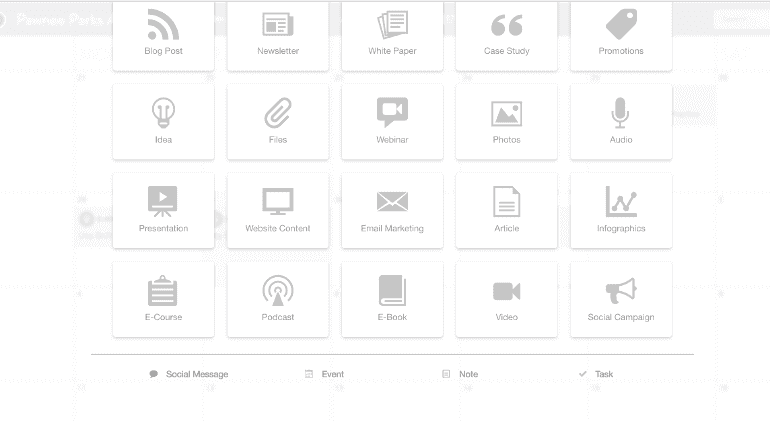
Click the + in the upper right-hand corner and select Social Message:
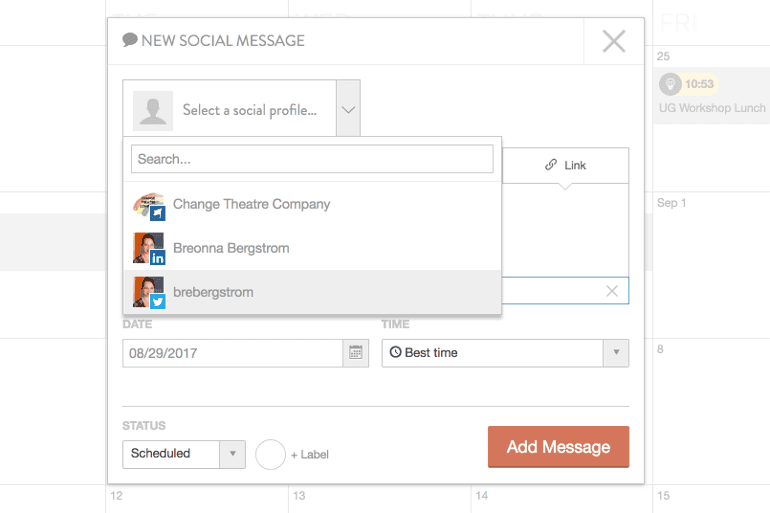
Select your Twitter channel:
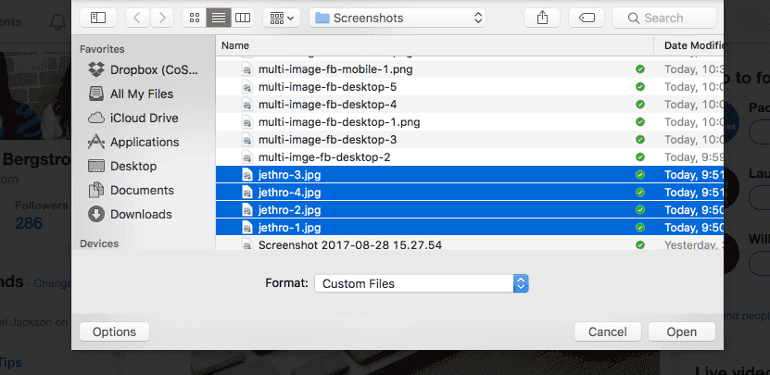
Then click to add in a maximum of four photos to your post. A second screen will appear allowing you to upload them straight into CoSchedule:
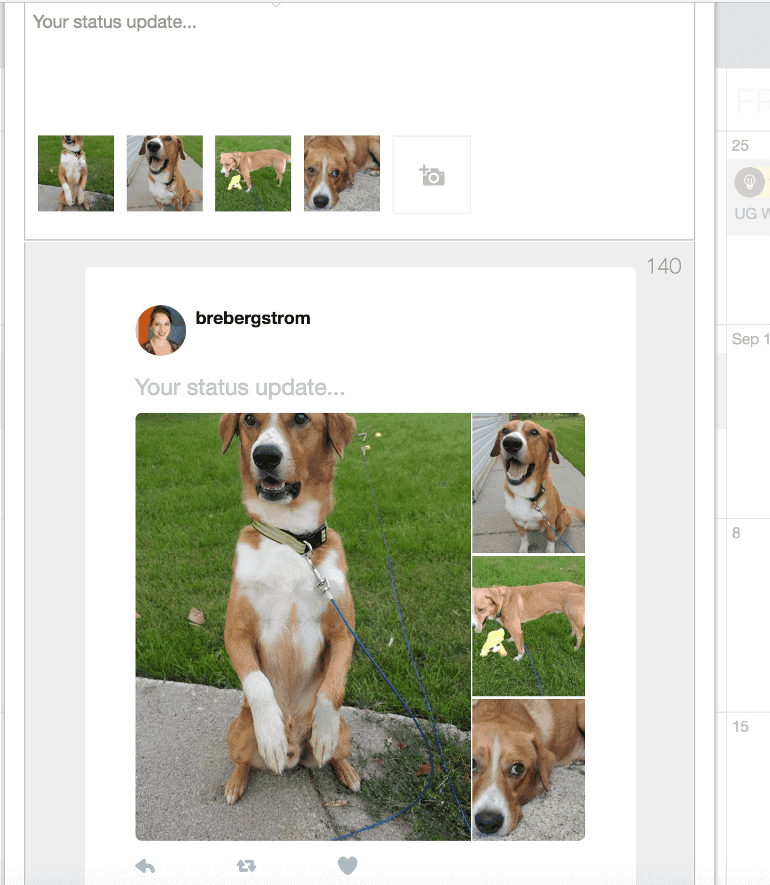
Once your photos are uploaded you can preview what your post will look like. If you don’t like the way that your photos look you can drag them around until you find the combination you’re looking for:
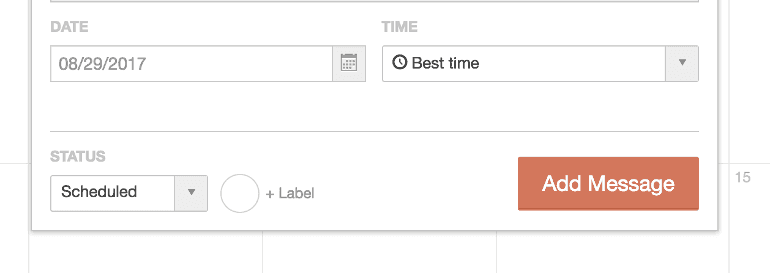
Once you have your photos set you can schedule or publish your post:
How To Schedule Multi-Image Twitter Posts With The CoSchedule Mobile App
Open your CoSchedule App:
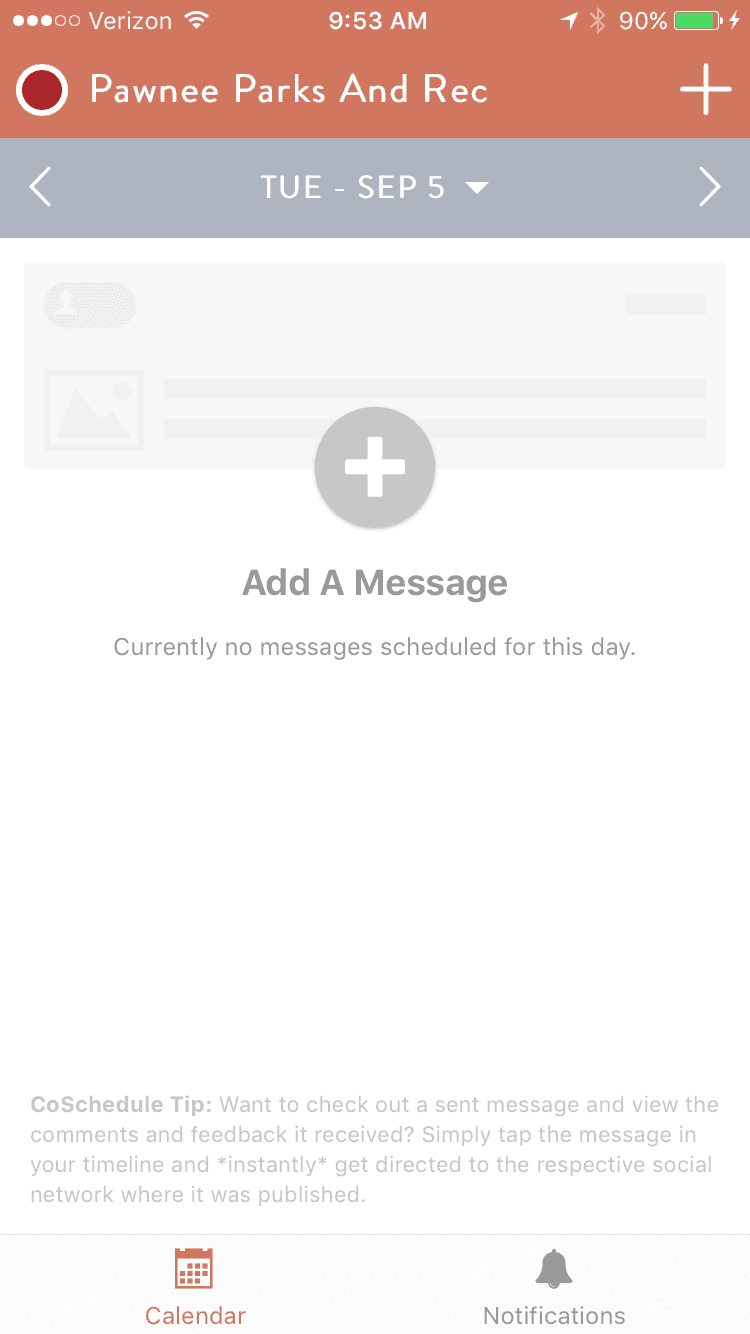
Select social message and then the Twitter profile you want to send your post from:
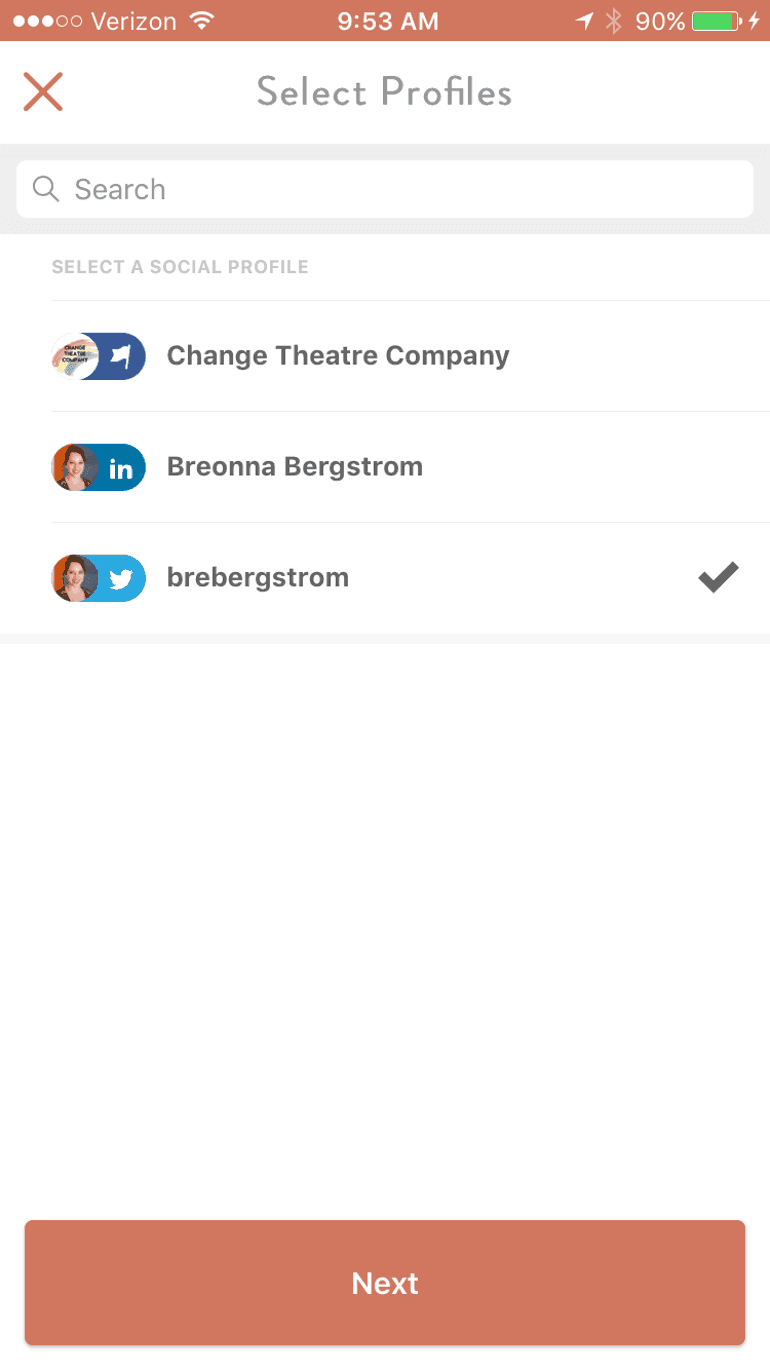
Select add image:
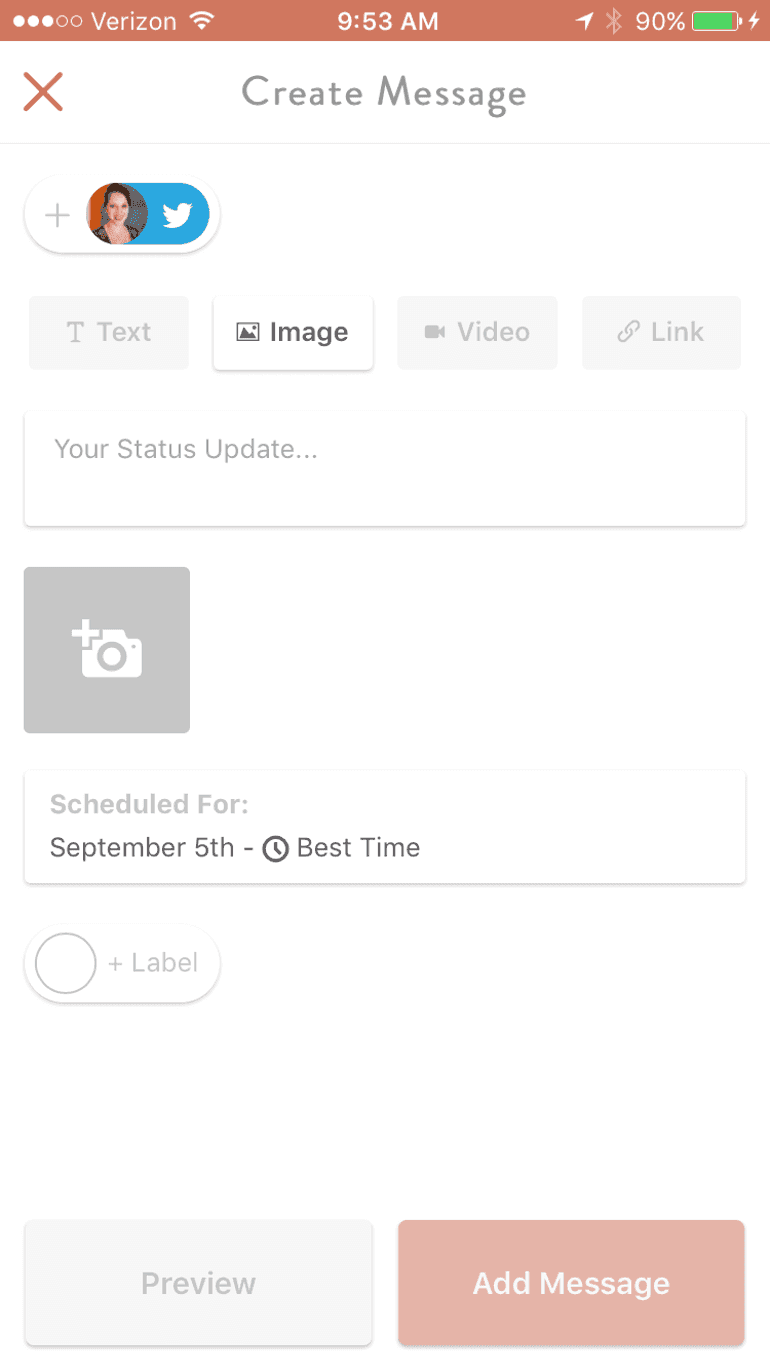
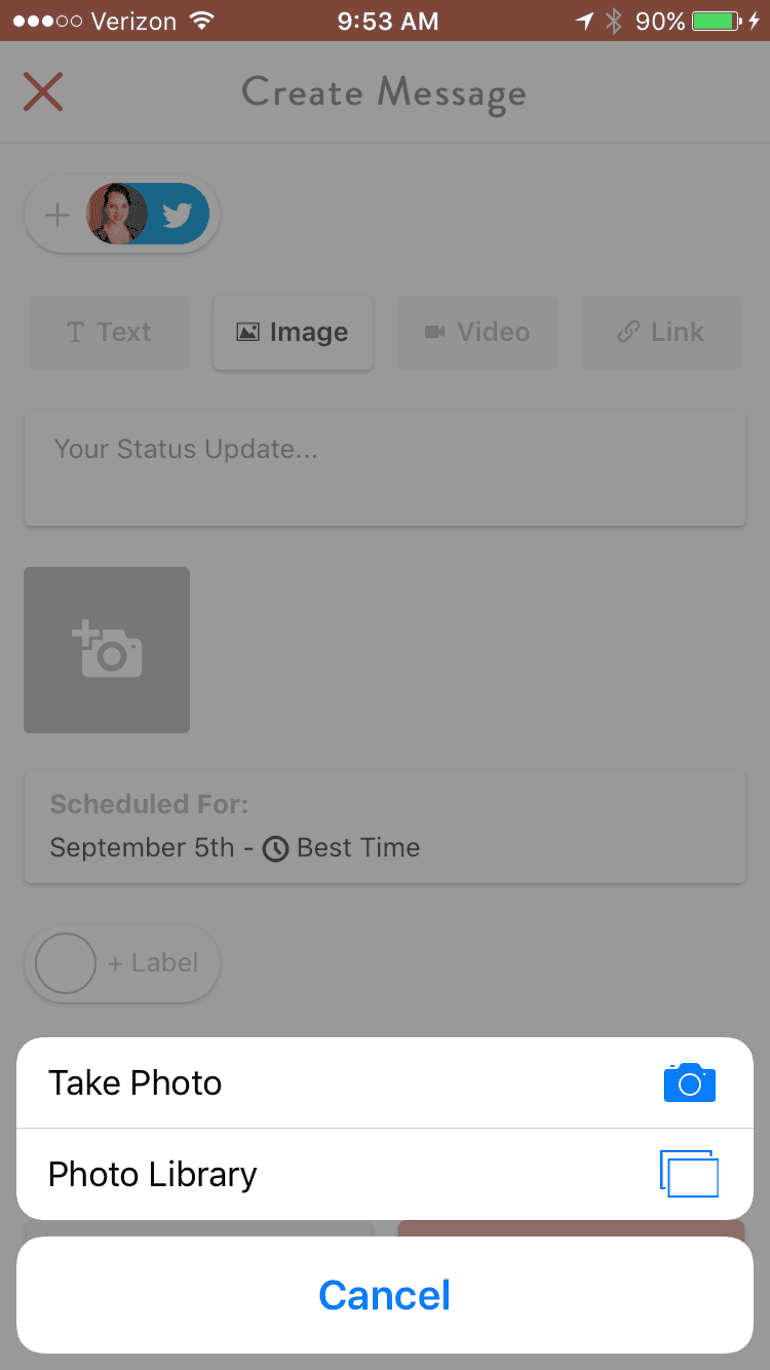
You can either upload photos via your camera roll or snap ones using your phone:
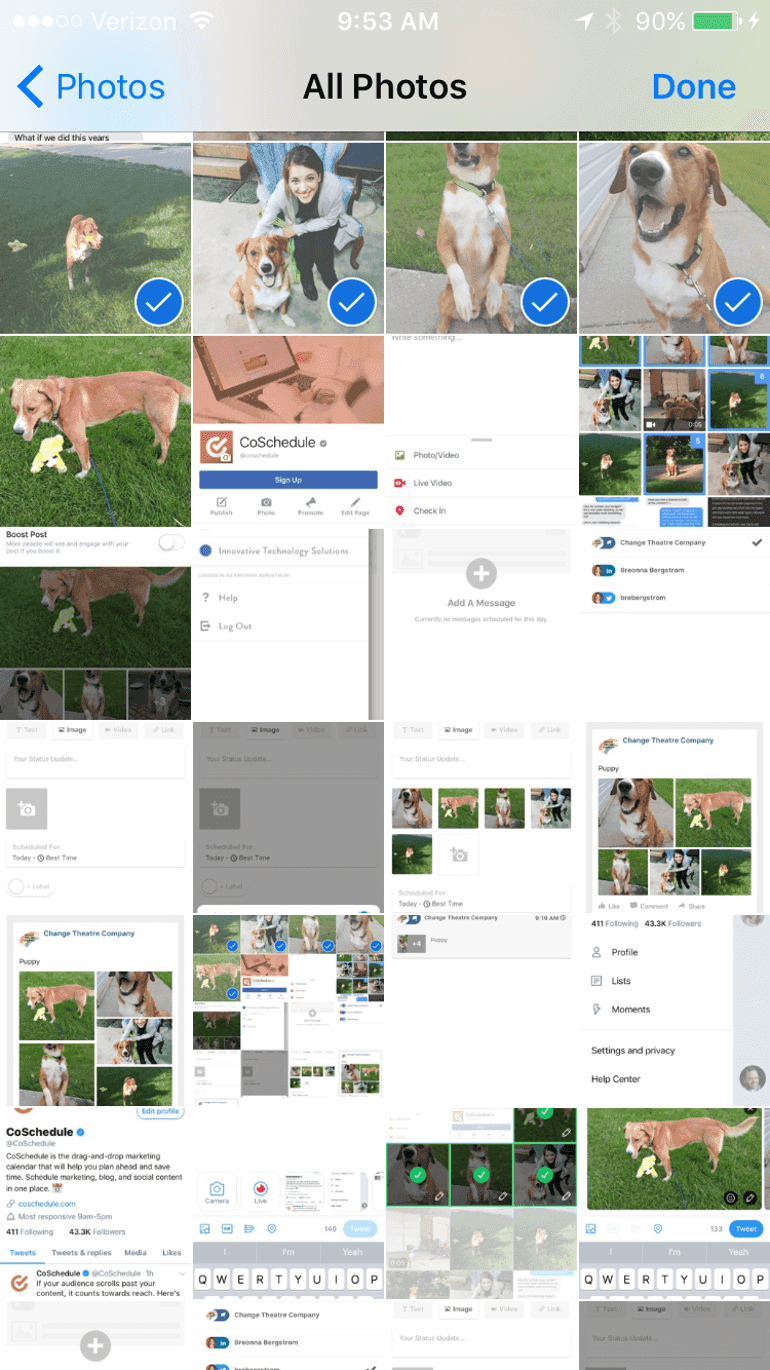
Select your photos:
Preview your post:
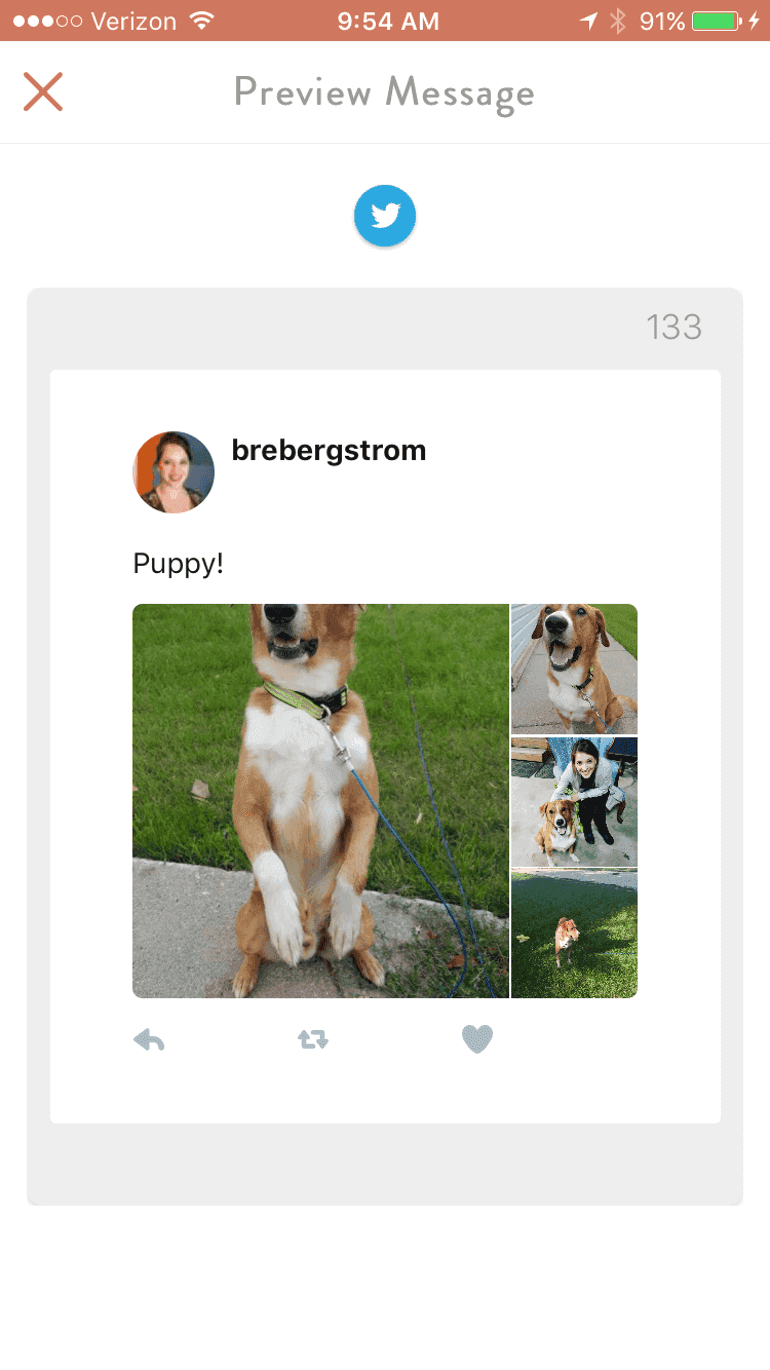
Schedule it to publish:
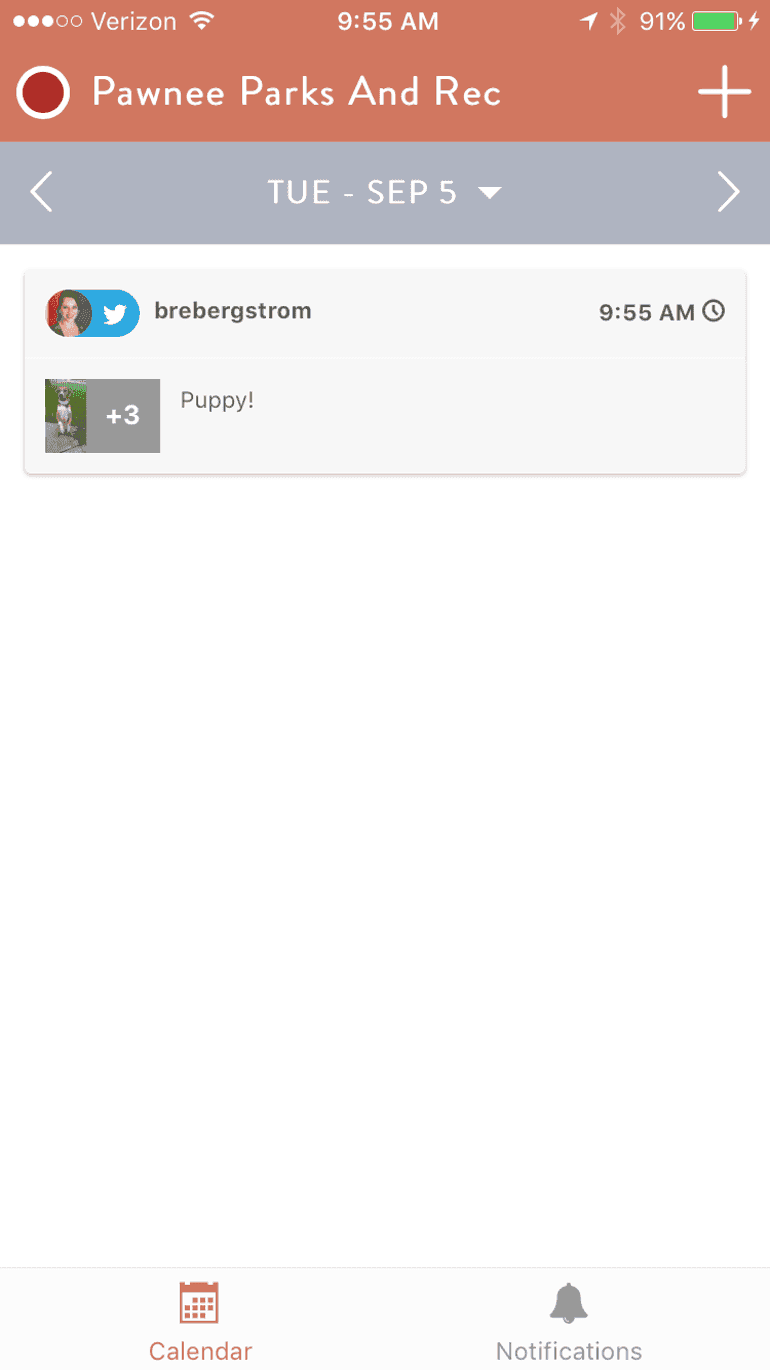
Twitter Multi-Image Best Practices
Multi-image posts work similarly on Twitter, as they do on Facebook. For example, the way they display depends on the size and combination of images you include.
Here are what different combinations of images look like on Twitter.
Two Images:
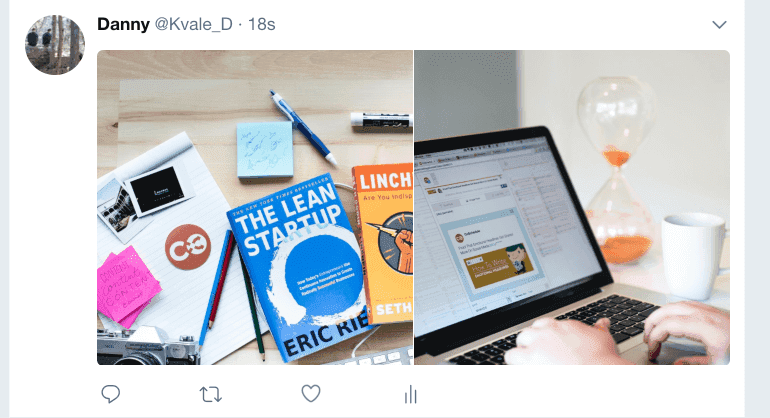
Three Images:
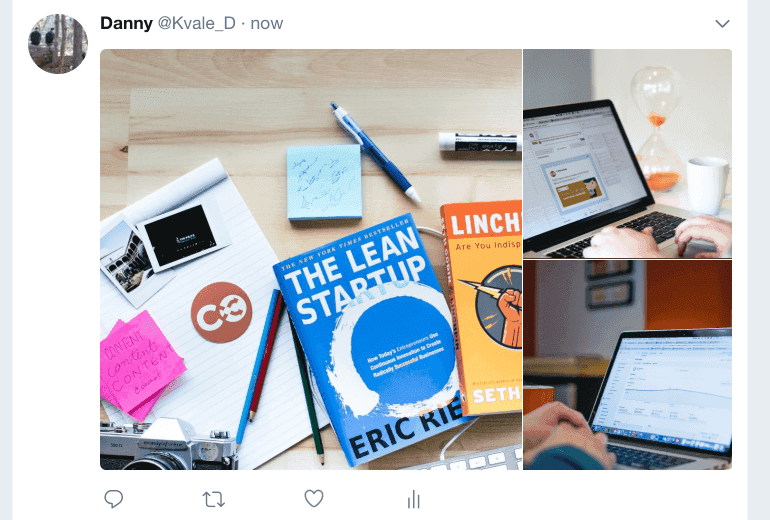
Four Images:
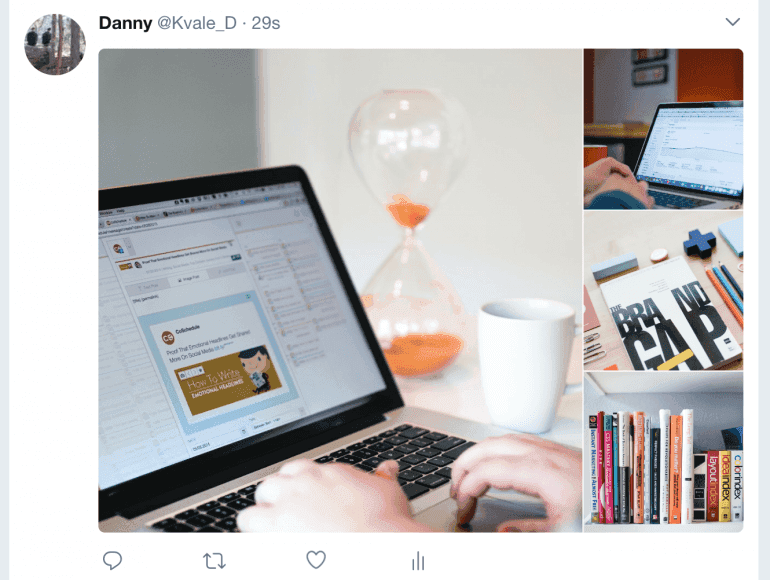
Unlike Facebook, you cannot add more than four images to a Twitter post.
Your team should also think about what order they want photos to be in when they are uploaded to Twitter. If you want one image to stand out in a set of three it would be best to place that image first and the others second, third, and fourth respectively.
Recommended Reading: The Social Media Posting Schedule That Will Boost Your Traffic By 192%
Now You Can Schedule All Your Multi-Image Posts In One Place
Instead of having to keep track of every photo, schedule every post and then panic if the wrong image was paired with the wrong post, make it easy and use CoSchedule.
First, open your CoSchedule calendar and select the brand you want to work with:
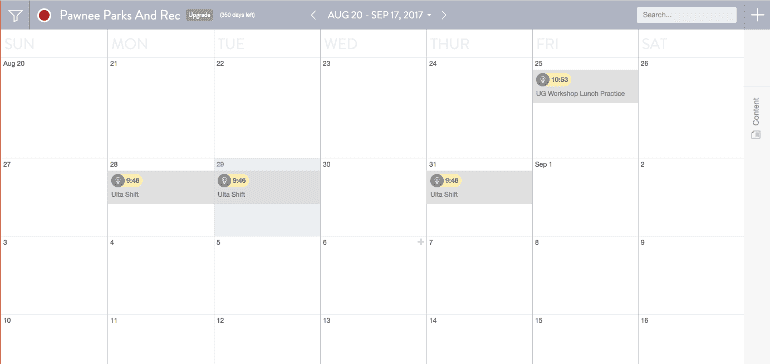
Then select the channels you want to send your post on:
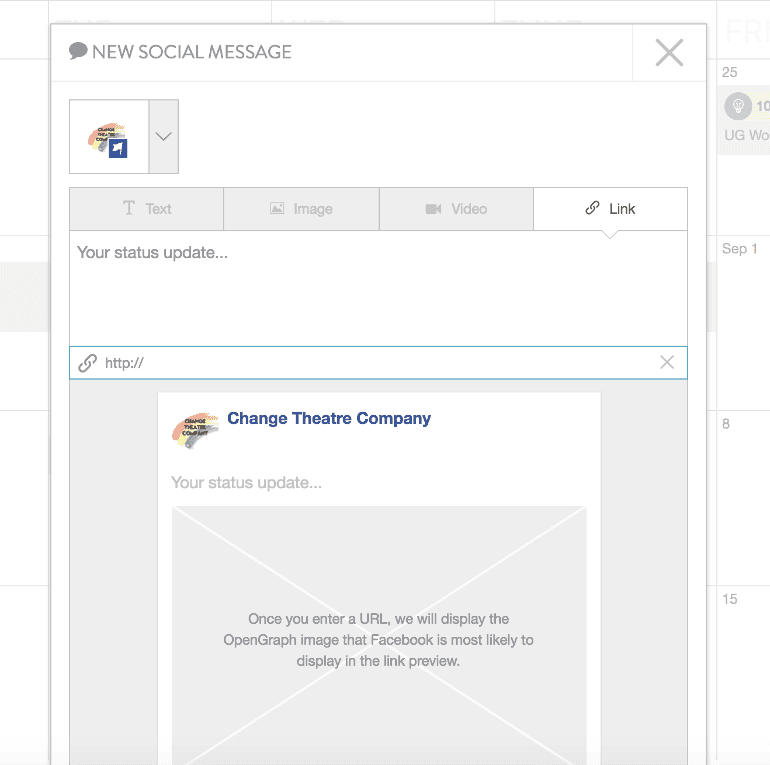
From there, add in the images that you want to post to your channels, but remember if you choose Twitter, you can only choose a maximum of four photos:
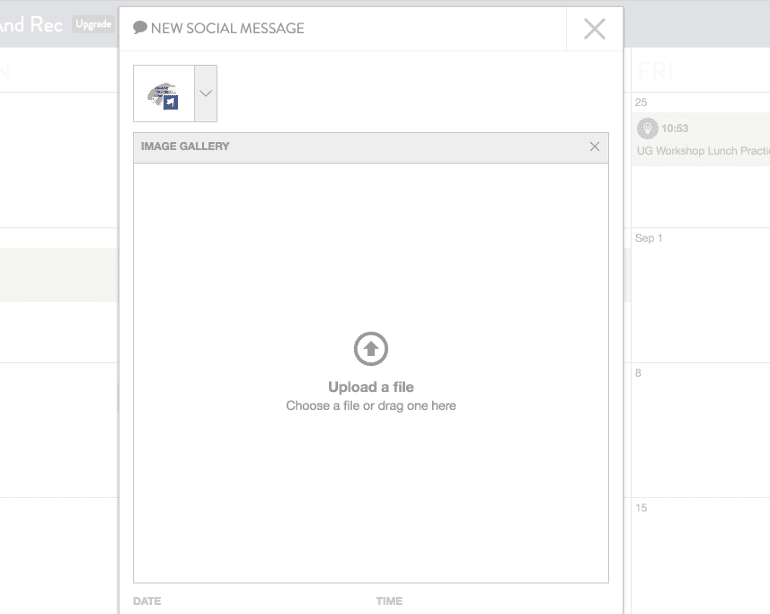
Draft your text:
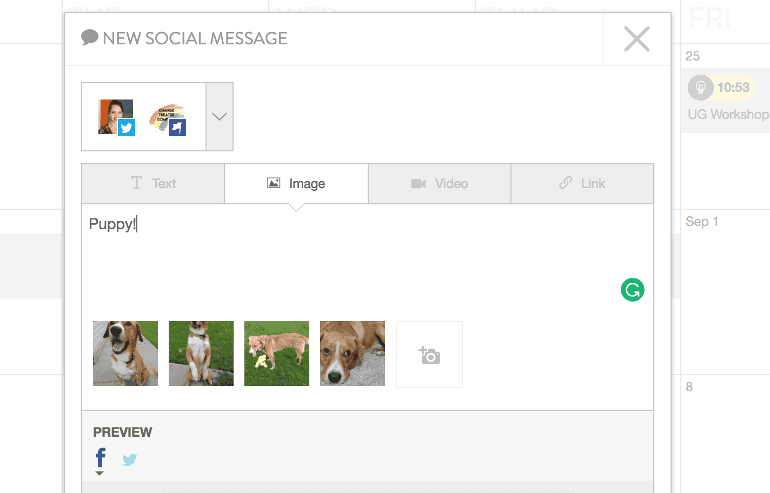
Drag and drop your photos in the order that you want them to appear and check the preview:
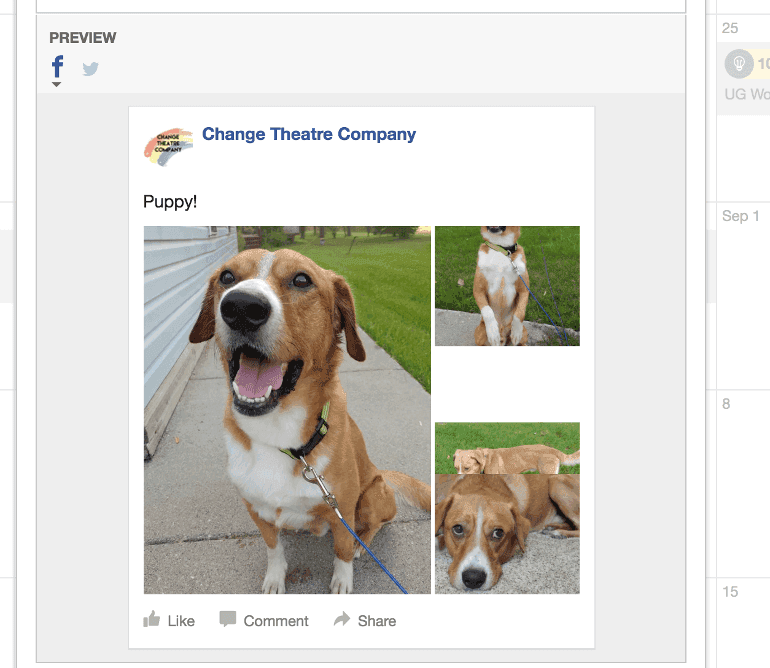
Publish or schedule your message:
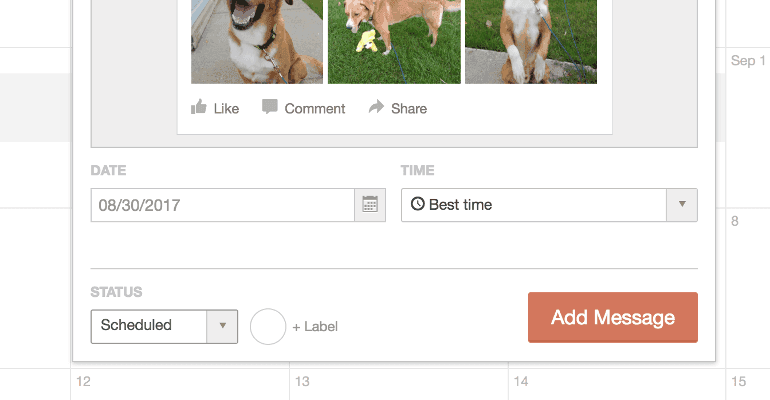
It’s really that easy.
Plus, with Best Time Scheduling, CoSchedule can make sure all your posts are optimally scheduled. With built-in Social Analytics, you can also know exactly how those posts are performing, too.
Recommended Reading: How to Build a Social Media Editorial Calendar The Easy Way (Free Template)
Become A Social Media Strategy Pro
The benefits to multi-image posts are clear. Standing out means you get more eyeballs on your content, which turn into leads which turn into sales.
But let's be real, just posting one extra image on your Facebook page isn’t going to create the best possible results. When used in conjunction with other tactics, it can be.
Learn tactics to complement and boost your multi-image posts with Actionable Marketing Institute’s course on Social Media Strategy.
Get certified to build a proven social media strategy that will help you be as effective and efficient as possible on social media.
Did you know you can schedule multi-image Facebook and Twitter posts with CoSchedule?
Click To Tweet