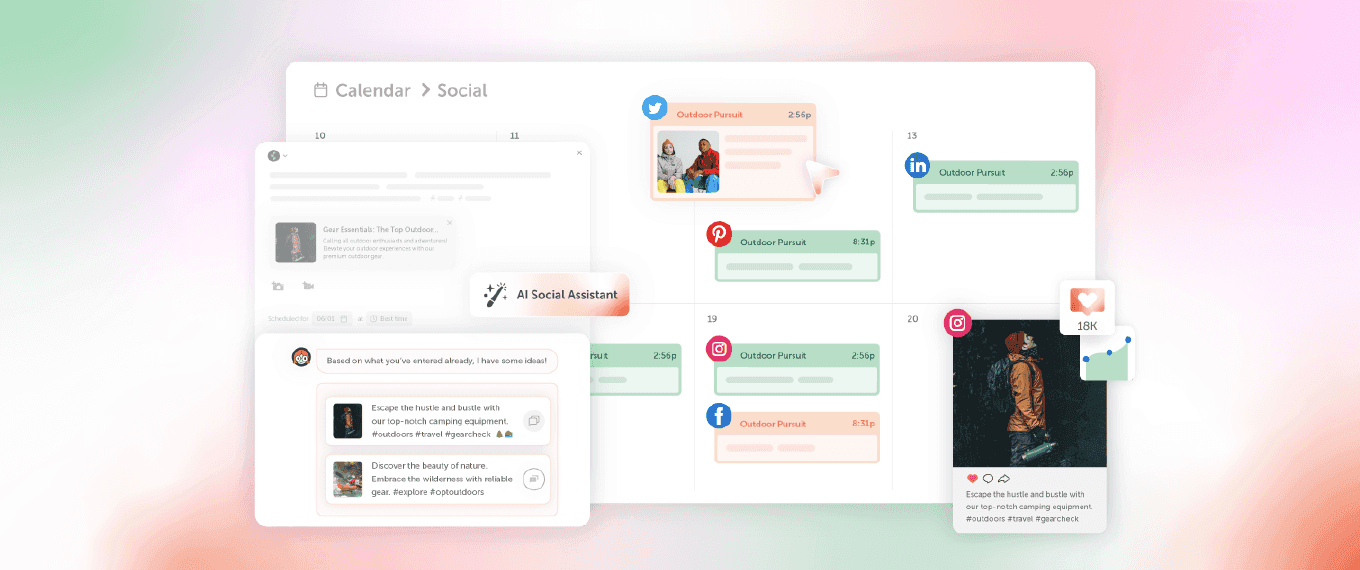
Develop Workflows to Create More Assets with CoSchedule

Obtaining assets from co-workers and handing them off can waste a lot of time. What if you were able to use all of that wasted time to create more content?
CoSchedule’s Asset Organizer allows you to obtain and hand off assets with ease through customizable workflows.
Table of Contents
- Introduction
- How Should You Implement Digital Asset Management With CoSchedule?
- Triage Inbound Marketing Requests
- Customize Your Idea Board Saved Views
- Set Expectations With Task Templates
- Default Templates
- Custom Task Templates
- Approvals
Introduction
What is this guide? This lesson goes into detail about the best practices to develop efficient workflows for your team to create more assets in Asset Organizer.
Who is this guide for? Marketers who want to learn the best way to develop workflows in CoSchedule’s Digital Asset Management solution — Asset Organizer.
What you’ll learn:
- How to triage project requests and new project ideas
- How to setup workflows for creating vendor assets and/or new internal project requests
- Save approved content to Asset Organizer
How Should You Implement Digital Asset Management With CoSchedule?
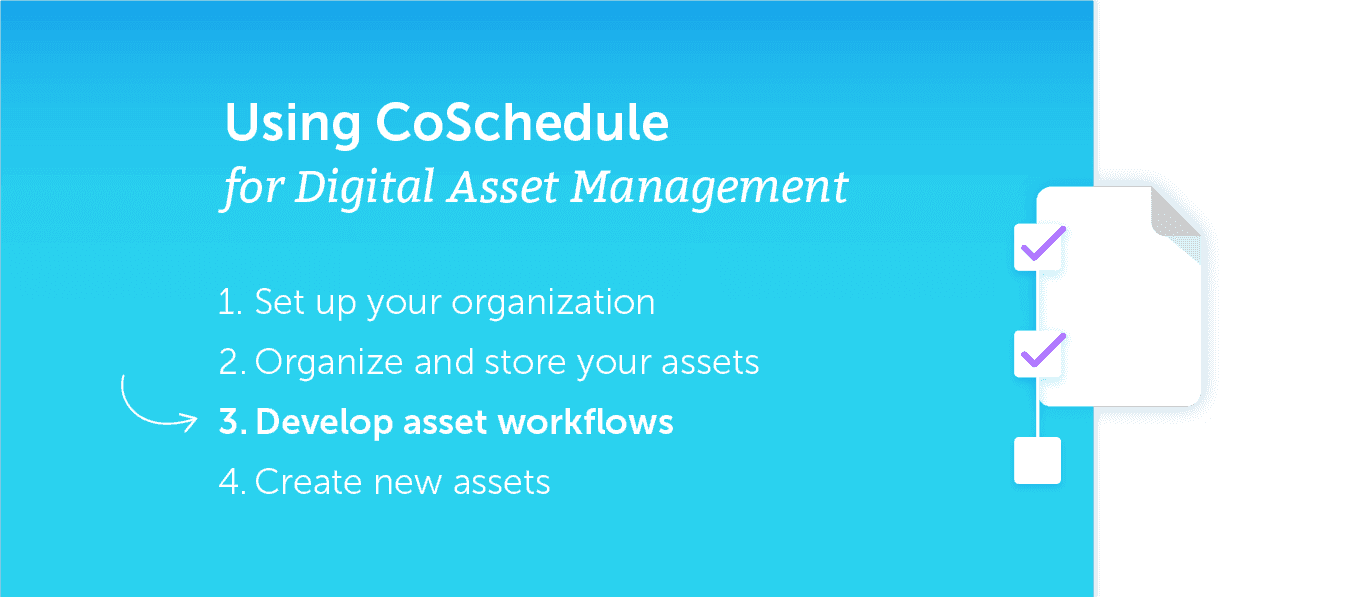
There are four steps you can follow to start implementing the CoSchedule Asset Organizer. The third of which is to develop your workflows.
If you missed the previous steps, click here.
After organizing and sharing your assets, the next thing you'll want to do is develop a process that will prioritize and organize your incoming marketing requests.
Triage Inbound Marketing Requests
You get a lot of inbound requests. When everything is urgent, prioritizing all of those requests can be a challenge.
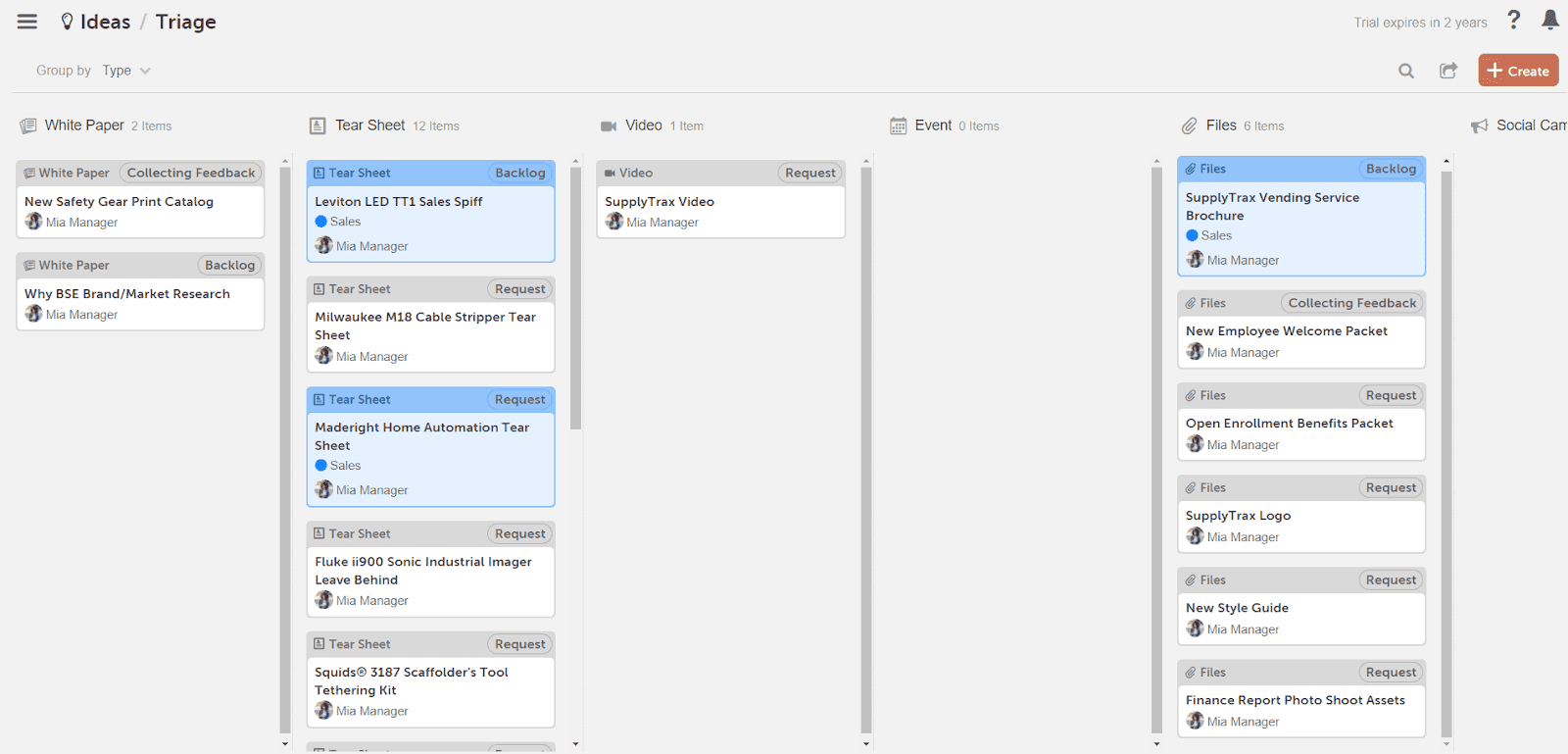
With CoSchedule’s Idea Board, you have a dedicated space for triaging, prioritizing, and assigning all those time-sensitive projects.
Customize Your Idea Board Saved Views
Creating saved views of your Idea Board allows you to plan and see the projects you want. When creating new, saved idea views, you can customize the views based on different use cases and types.
Below are some examples of saved views.
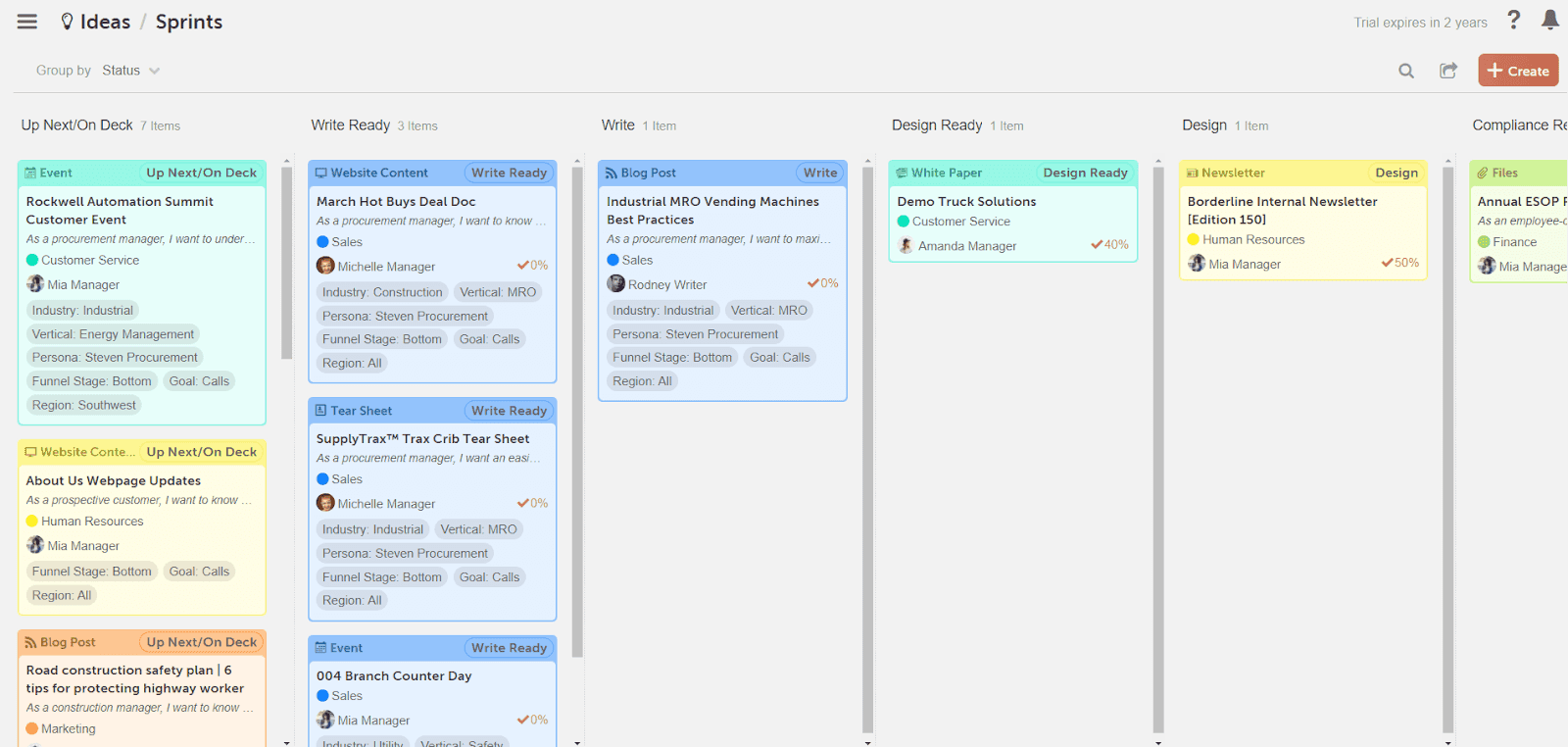
- By Status
- Create an editorial process using custom statuses. Having a full understanding of where you’re at with each post will allow you to prioritize your work.
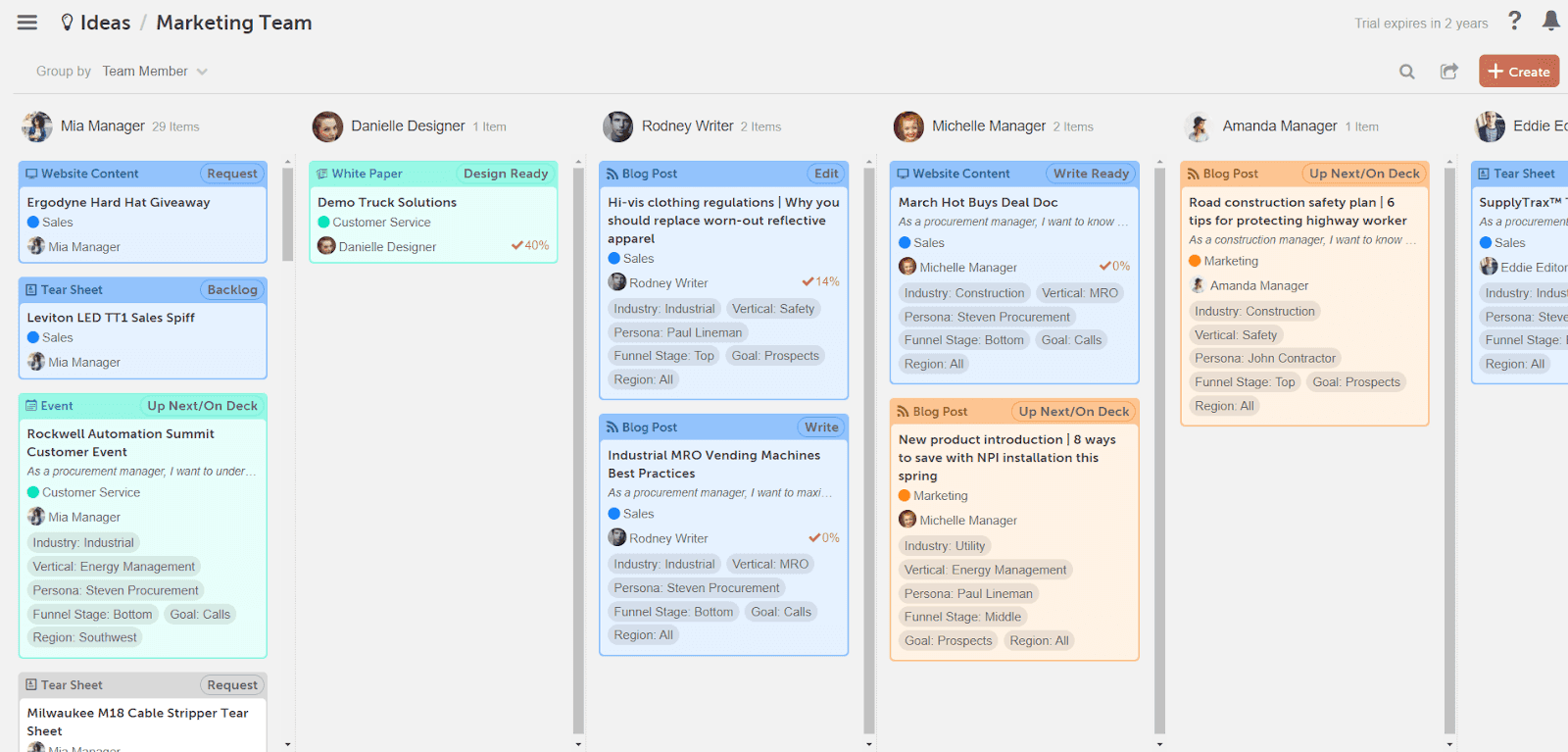
- By Team Member
- Knowing what every person on your team is doing and what their priorities are is challenging. Creating different idea views for each team will allow you to know what each person has on their to-do list for the day, the week, and beyond.
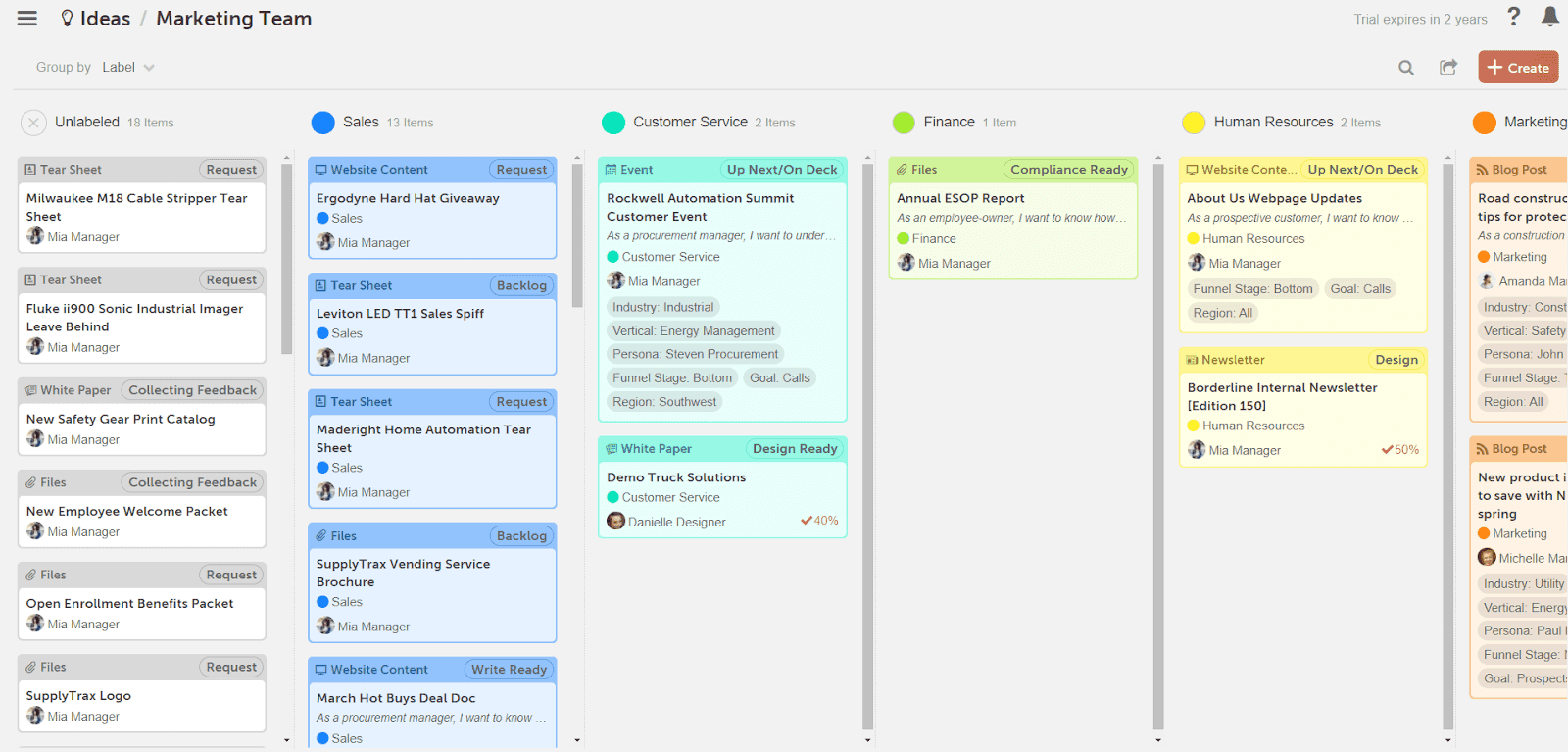
- By Color Labels
- Sort your projects by campaigns, internal teams, clients, or content themes. With custom color labels, you can categorize everything on your calendar in a way that works best for your team.
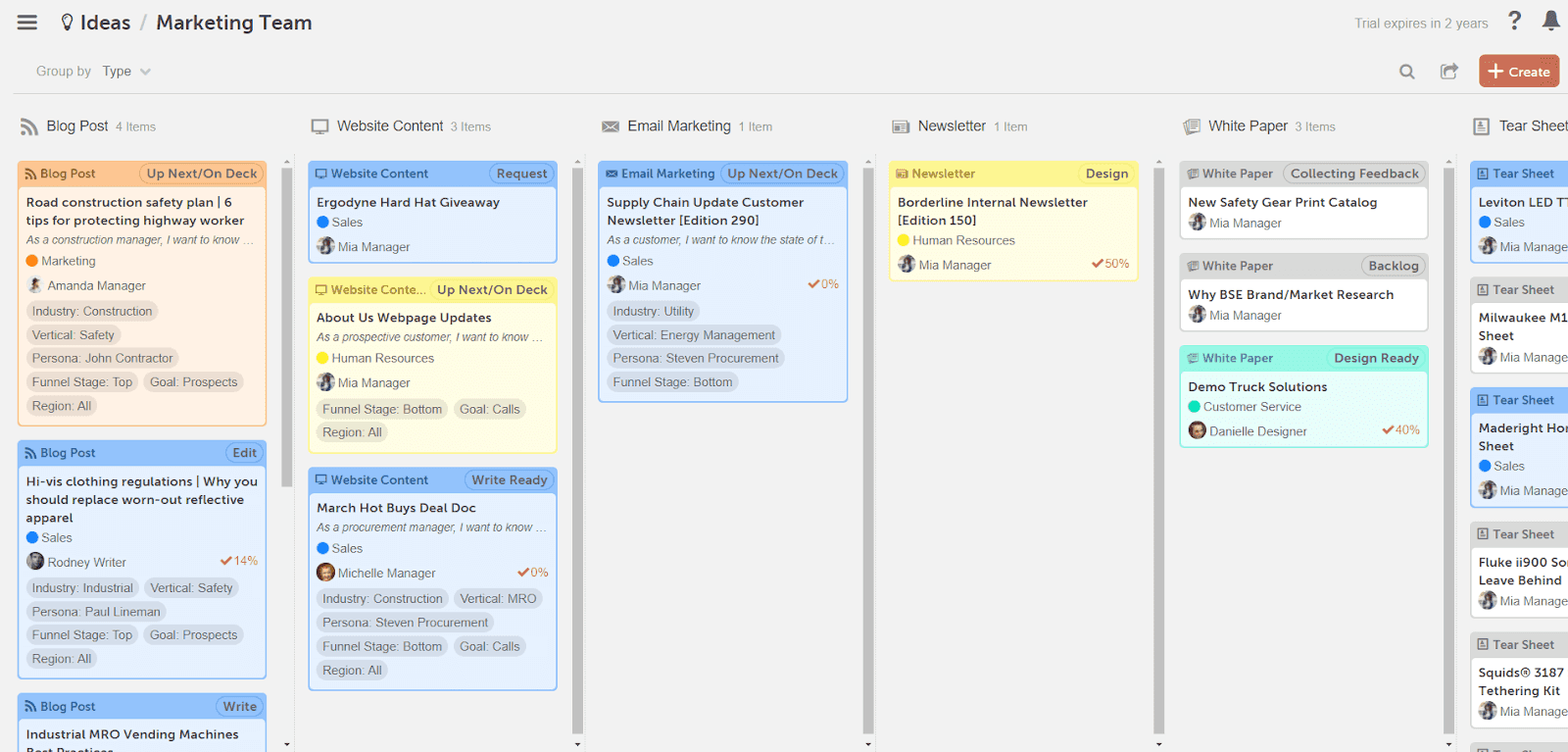
- By Project Type:
- Keep track of all your content currently being created. With project types, you can customize your content to reflect what you care about.
Set Expectations With Task Templates
Many projects are recurring — ranging from social campaigns, blog posts, and even product launches. These are projects that consistently present themselves — week, after week, after week.
Task templates eliminate mistakes so projects can move forward in a timely fashion. Your team will have assigned tasks, and they will be ready to get to work at a moment’s notice.
Default Templates
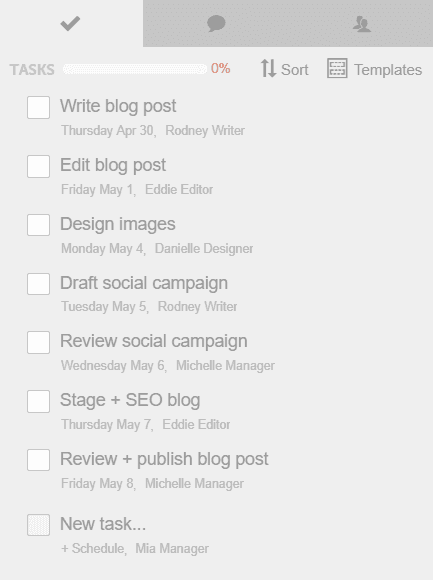
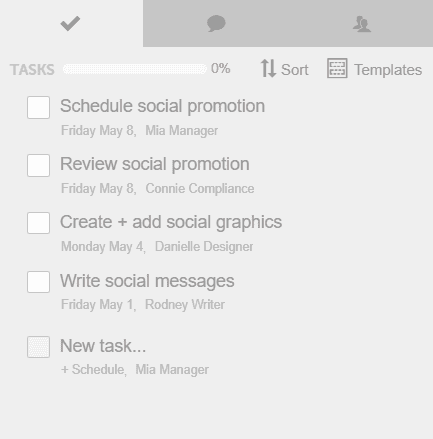
To help get you started on the right foot, CoSchedule has default task templates for blog posts, social campaigns, email marketing, and more. Each template covers different steps in the process to create a finished project.
For example, the blog post template will focus on tasks centered around getting a blog post published.
While the social campaign template will focus on creating and scheduling a social media campaign.
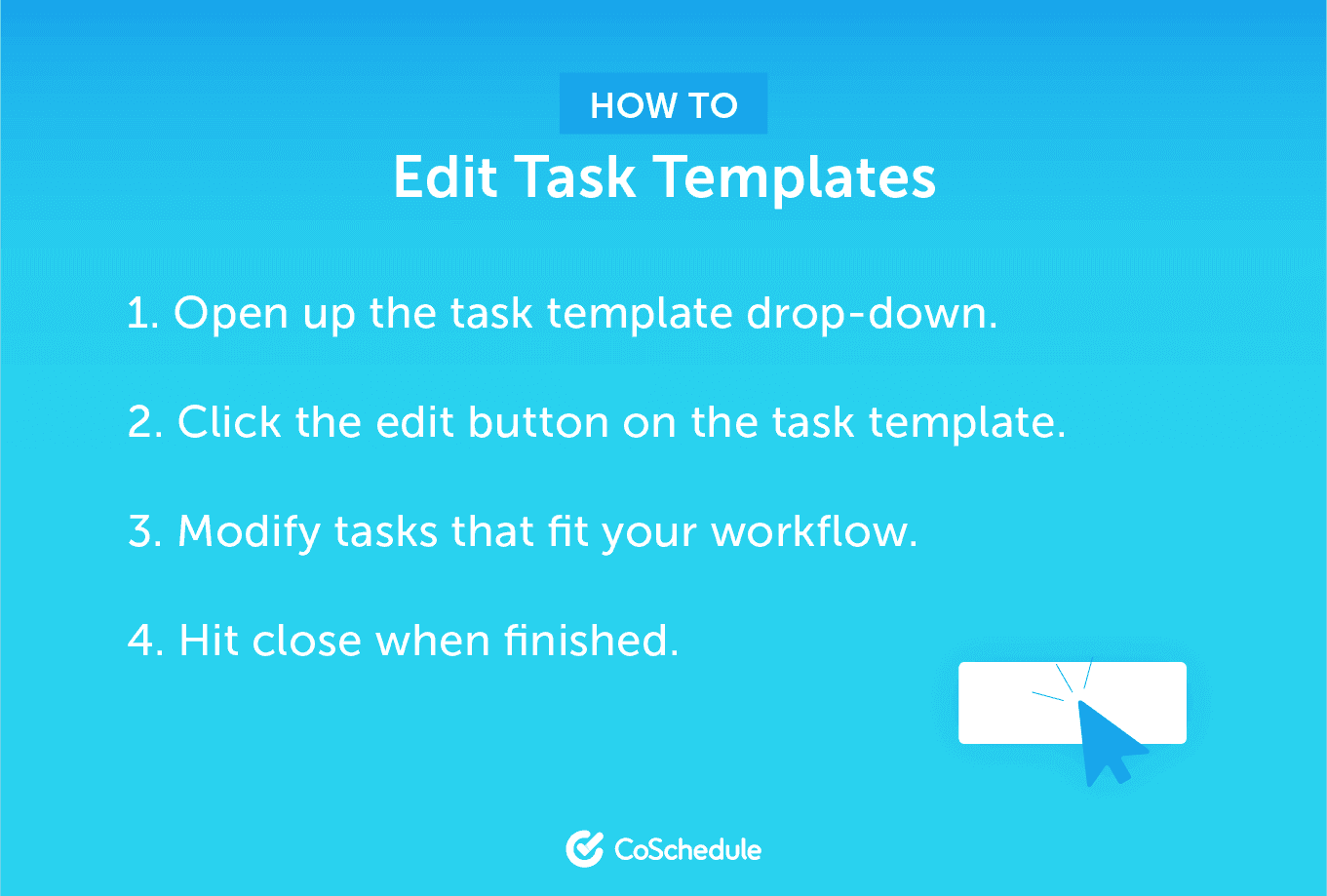
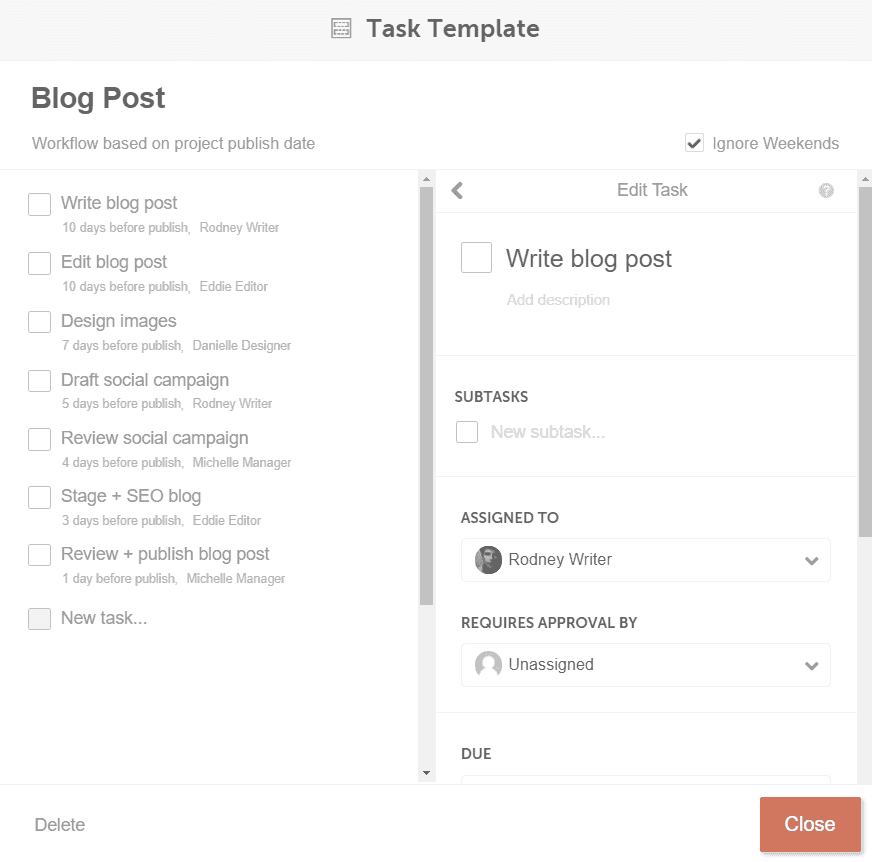
If your processes are different, you can easily edit our existing templates by deleting, adding, or adjusting whatever works for your team.
Custom Task Templates
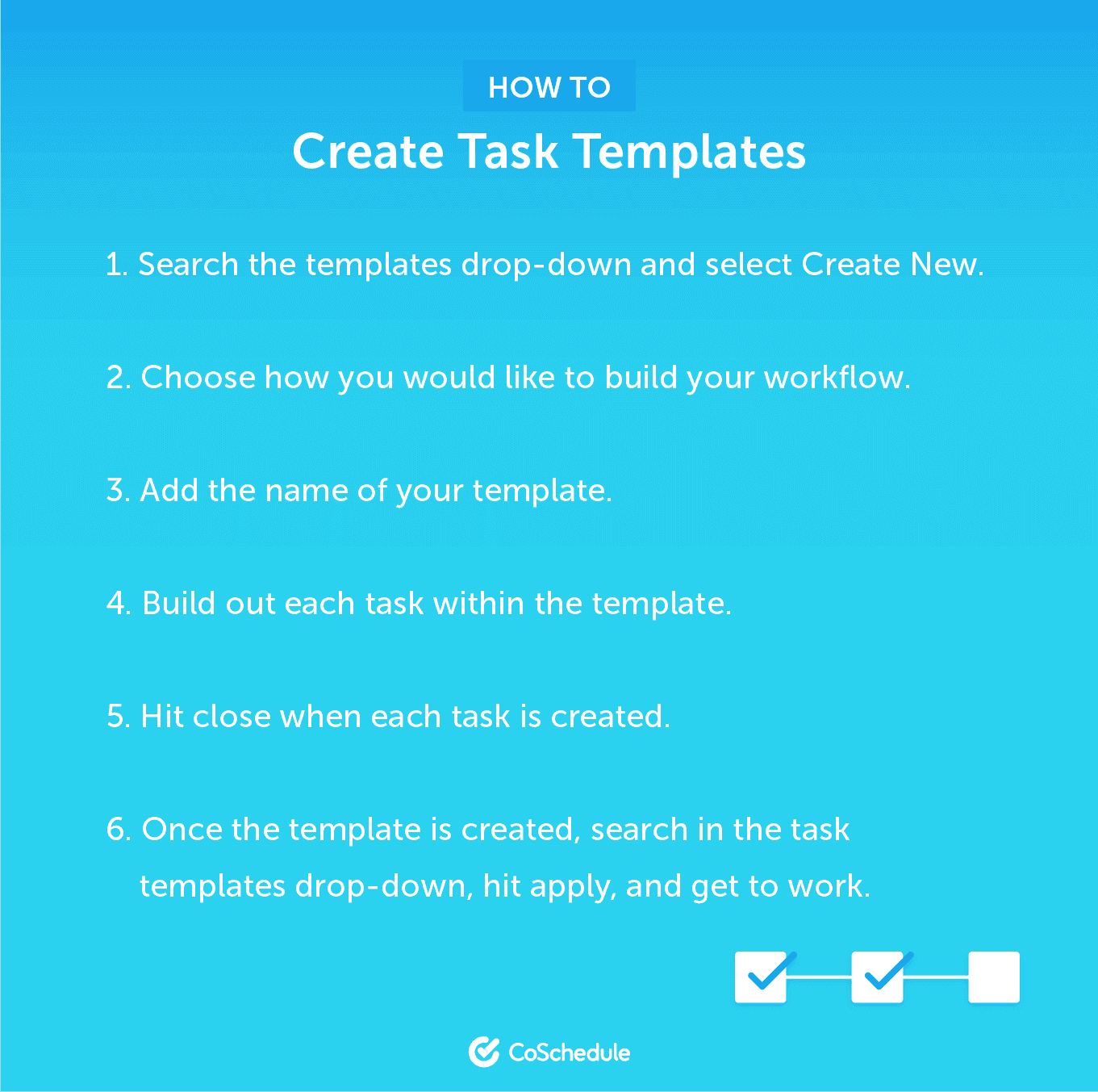
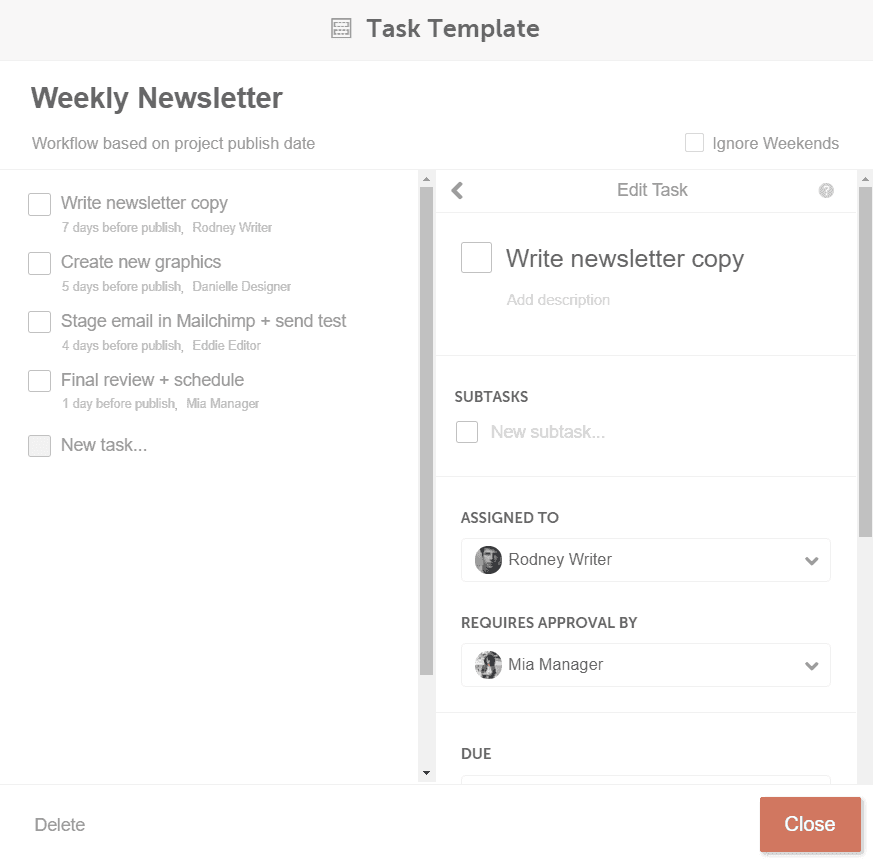
There might be a unique recurring project that you have. You can create a task template for each and every project that’s inside CoSchedule.
Approvals
Need a client or manager’s confirmation on a task? Do you want to keep track of your team better?
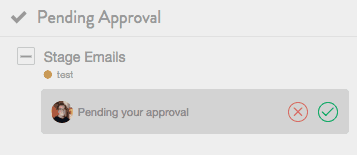
Always make sure tasks are completed correctly with approval workflows for tasks.
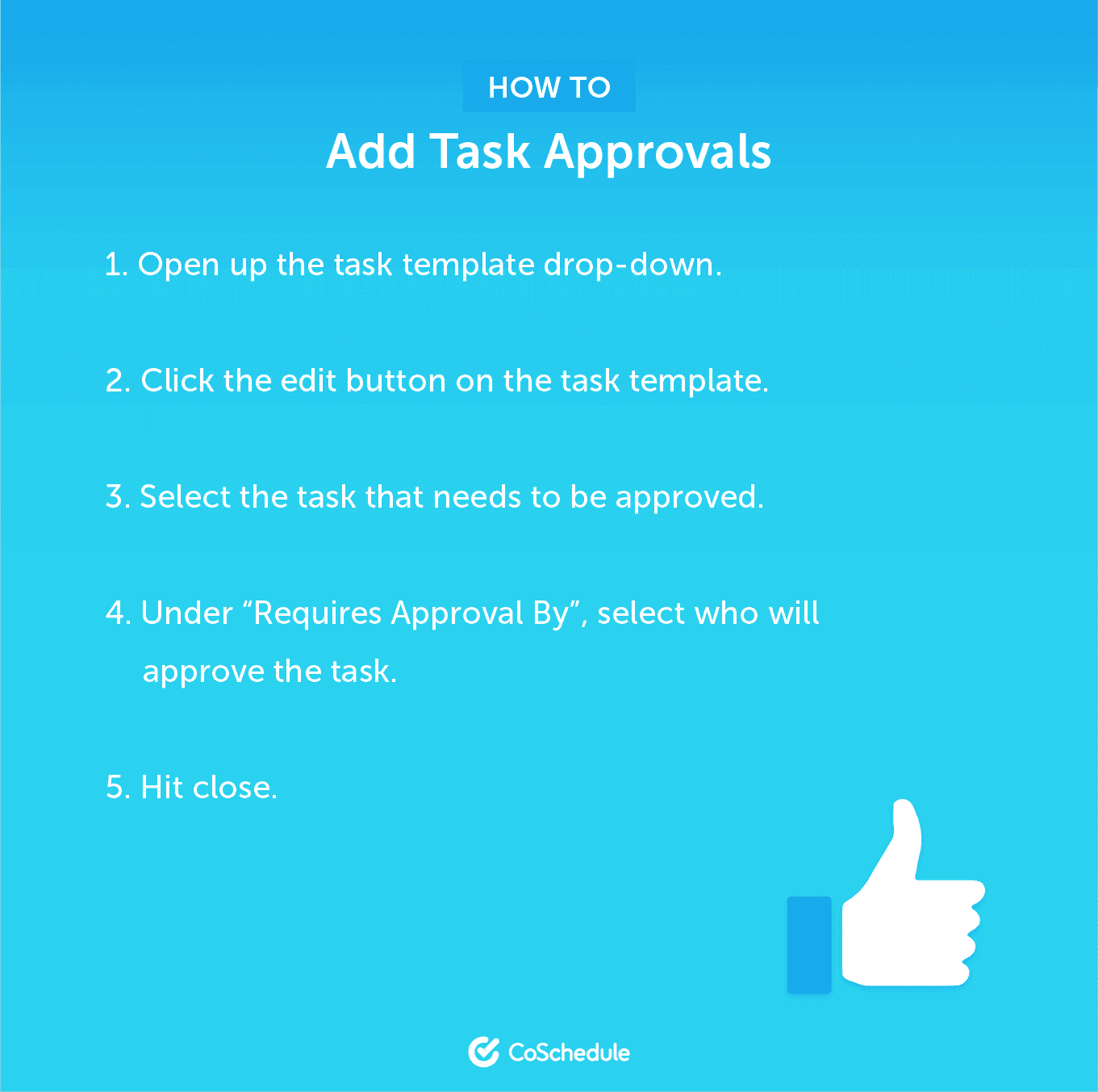
CoSchedule’s task-template-approval process helps you easily transition your content workflow straight into your publishing tool.
If you’re a visual learner who would rather learn this in a how-to video, see below.